.png?width=1322&height=525&name=LEANSITE%20LOGO%20(COLORED).png)
The basics in a minute
Two things work together.
A budget is a pot of money for one location, for one year. A work order NTE — short for Not-to-Exceed — is a spending ceiling on a single job.
Every NTE you set draws from that location’s budget. If a job would take you past what is left, LeanSite stops the work order before it is created, and tells you how much you actually have. Nothing is committed by accident, and no vendor can invoice you above the ceiling you agreed.
The four numbers on every budget
Whenever you open a budget, you will see four figures. They are the whole system in one glance.
|
Number |
What it tells you |
|---|---|
|
Total |
The full allocation for that location this year. |
|
Committed |
Money promised to active work orders that have NTEs. Obligated, but not yet paid. |
|
Spent |
Money actually paid out, through approved invoices. |
|
Available |
Total minus Committed minus Spent. What you can still spend today. |
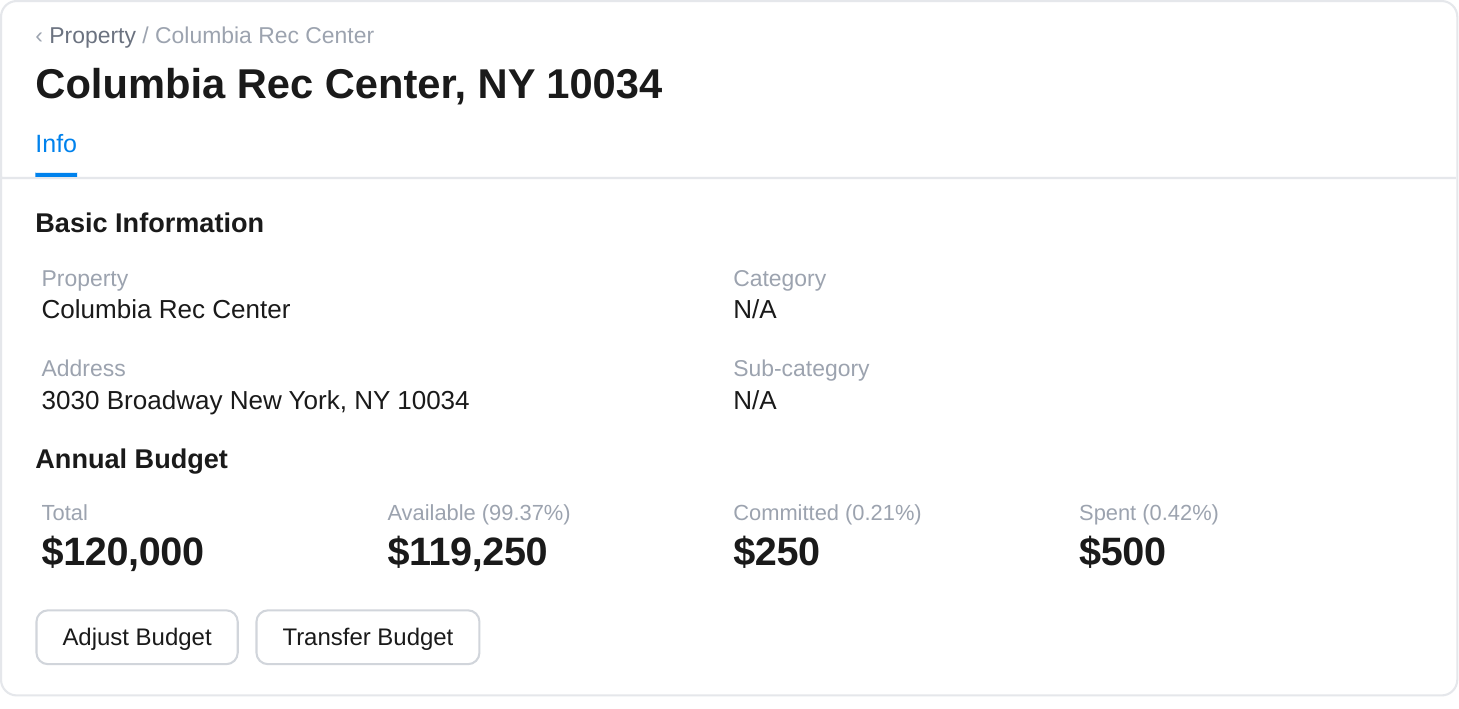
The Annual Budget block on a property’s Info tab, with the Adjust Budget and Transfer Budget actions underneath.
These figures refresh within about 10 seconds of anything that changes them, so you are never looking at yesterday’s picture. The budget detail page shows the same four states as progress bars.
Why Committed matters. It is the number most people miss. It shows what you have promised before any money has left your account, so you can see a squeeze coming rather than discovering it at invoice time.
What happens when you set an NTE
Follow one job through, start to finish.
- You create a work order with an NTE of $5,000. Committed rises by $5,000 and Available drops by the same amount.
- Your vendor does the work and invoices $4,200. They cannot submit anything above $5,000 — LeanSite blocks it at submission.
- The invoice is approved. Committed falls by $5,000, Spent rises by $4,200, and the $800 you did not spend returns to Available automatically.
If you cancel the work order instead of completing it, the full committed amount is released back to Available.
When a work order is blocked
As you create a work order, LeanSite checks one thing: is the NTE within your Available budget? If it is, the work order is created and the amount is committed. If it is not, you will see a message showing what is available against what you asked for, and you can choose one of three routes:
- Lower the NTE so it fits what you have.
- Request a budget increase from your Org Owner.
- Cancel the work order.
What your role lets you do
|
Task |
Facility / Property Manager |
Org Owner / Super Admin |
Service provider |
|---|---|---|---|
|
Create a budget |
No |
Yes |
No |
|
Set an NTE on a work order |
Yes |
Yes |
No |
|
Request a higher NTE or budget |
Yes |
— |
No |
|
Approve or deny those requests |
No |
Yes |
No |
|
Move budget between locations |
Your assigned locations |
Any location |
No |
|
See the NTE on a work order |
Yes |
Yes |
Yes, on assigned work |
|
Invoice above the NTE |
— |
— |
No, blocked |
Step-by-step tasksCreate a budget for a location [Org Owner / Super Admin]
- Go to Budgets in the main navigation.
- Click Create Budget.
- Fill in the budget name, choose the location, and enter the total amount for the year.
- The period is set for you: 1 January to 31 December of the current year.
- Click Create. LeanSite generates a budget ID in the format BDG-XXXXXX so you can reference it later.
Each location can have one active budget per year, and LeanSite enforces that for you. A location with no budget yet shows all four figures at zero, with a Create Budget button in place of the usual actions.
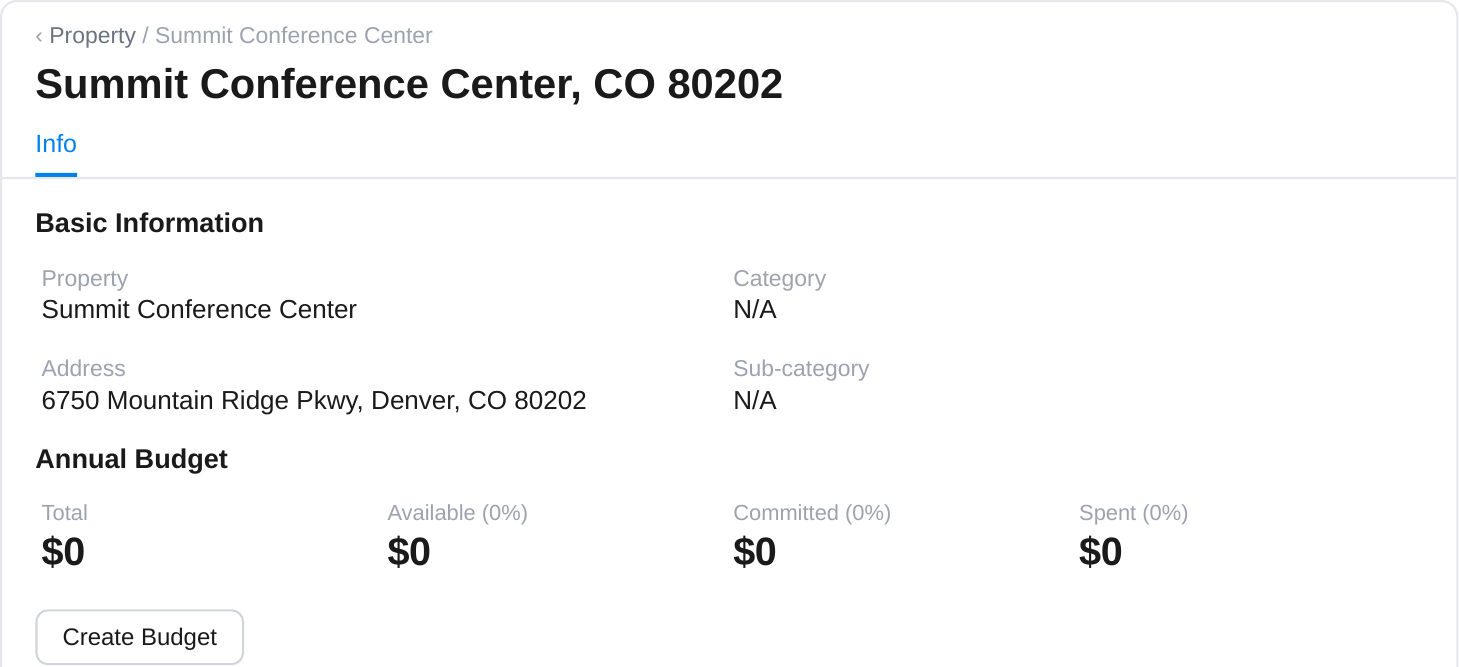
A location before a budget exists. Set one up before the year starts so that NTE checks are active from day one.
Check a location’s budget
- Go to My Property and select the property you want.
- The property opens on the Info tab, where the Annual Budget block sits.
For a quick scan across sites, the property list shows the annual budget and usage for every location without opening anything. Your budget dashboard also brings all locations into one view, with summary cards adding up Total, Committed, Spent and Available across the portfolio and a filter to focus on a single property.
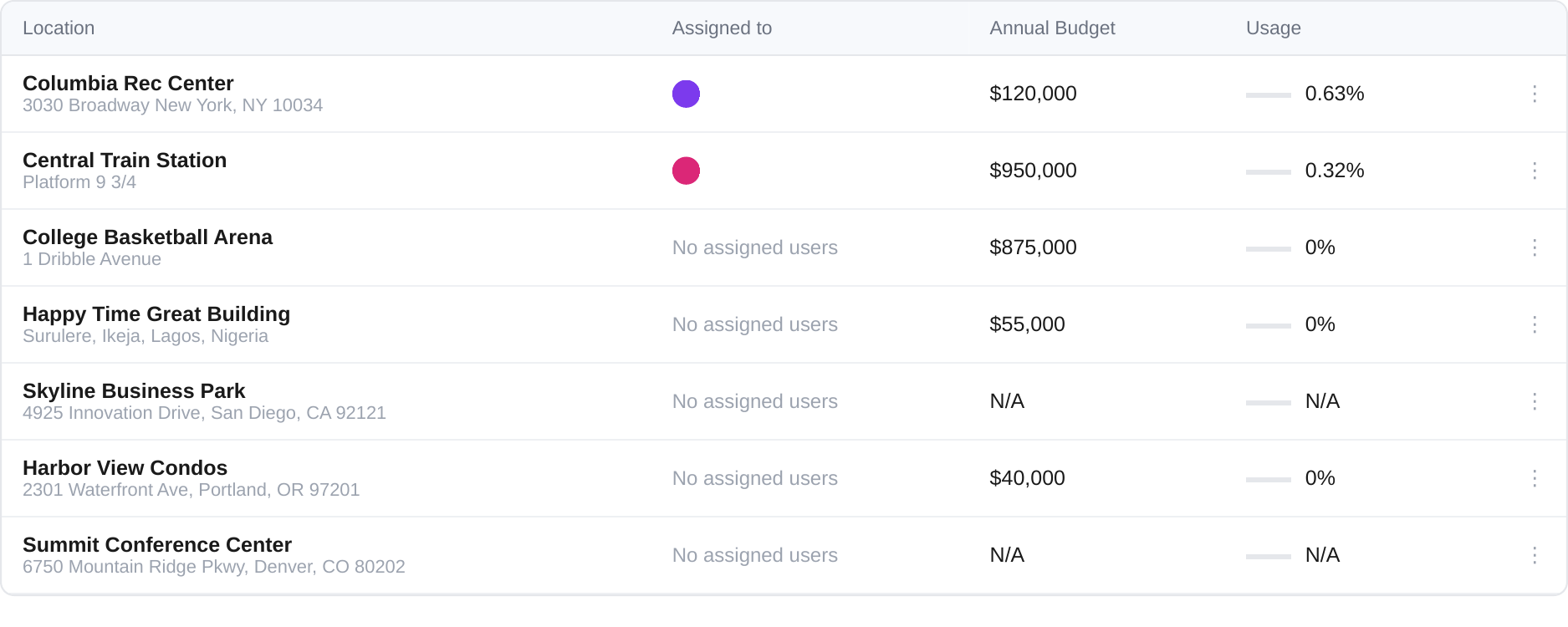
The property list, with annual budget and usage for each location.
Add an NTE to a work order
- Create a work order as you normally would.
- Enter your ceiling in the NTE (Not-To-Exceed) Amount field.
- Submit. LeanSite checks the amount against your Available budget and either creates the work order and commits the funds, or shows you the block message.
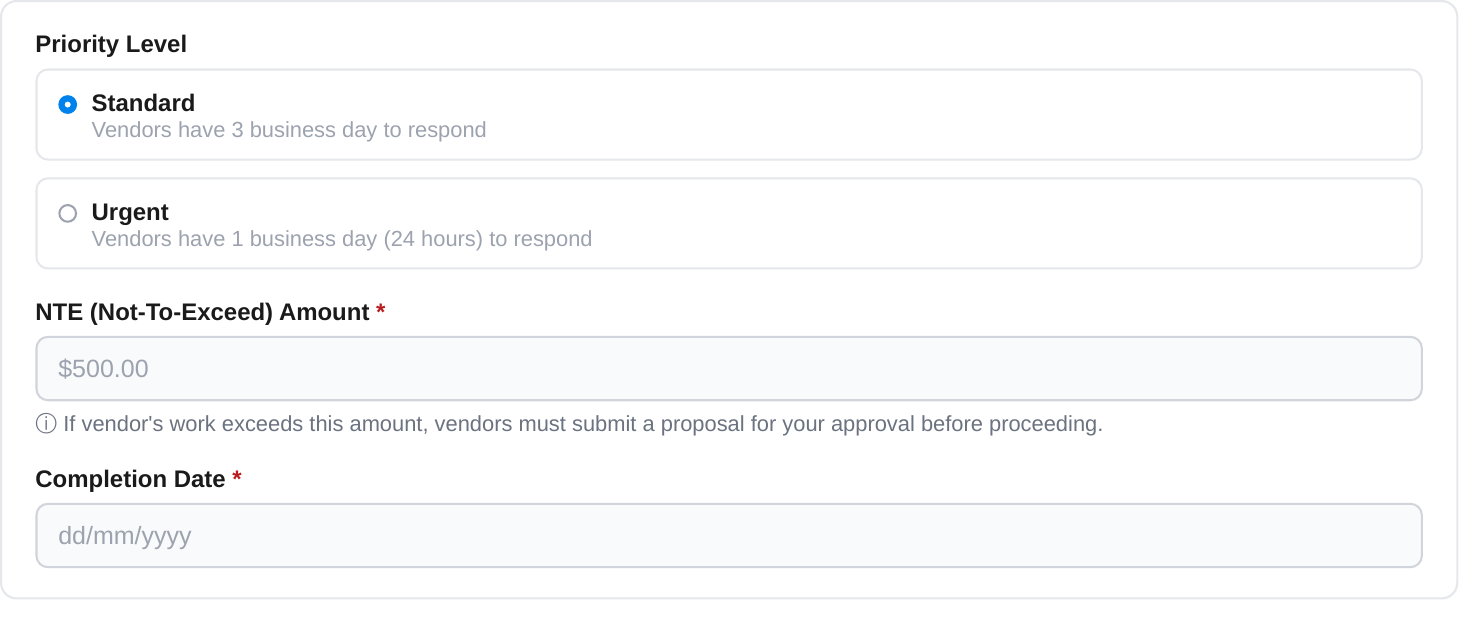
The NTE field during work order creation. The note beneath it is what your vendor is held to: exceed this amount and they must submit a proposal for your approval first.
Set an NTE on every work order, even when it is only a rough estimate. An approximate ceiling still protects the budget; no ceiling protects nothing.
Ask for a higher NTE on a job [Facility Manager]
- Open the work order and click Request NTE Increase.
- Enter the new amount and a reason. The reason is required — it is what your Org Owner reads when deciding.
- Submit. Your Org Owner is notified by email and in the app straight away.
Once it is approved, the NTE updates, Committed adjusts to match, and you are notified.
Ask for a bigger budget [Facility Manager]
- Open the budget detail page and click Request Budget Increase. From a property, you can start the same request with Adjust Budget on the Info tab.
- Enter the amount you need and your reason.
- Submit for approval.
When it is approved, Total goes up, Available recalculates, and your alert thresholds recalibrate to the new total automatically.
Review a request [Org Owner / Super Admin]
- Open the request from your notification bell or the email you received.
- Review the detail: current amount, requested amount, how much is available now and after the increase, and the reason given.
- Click Approve or Decline, with a reason either way.
The requester is notified of your decision automatically, and every decision is recorded with its reason and timestamp.
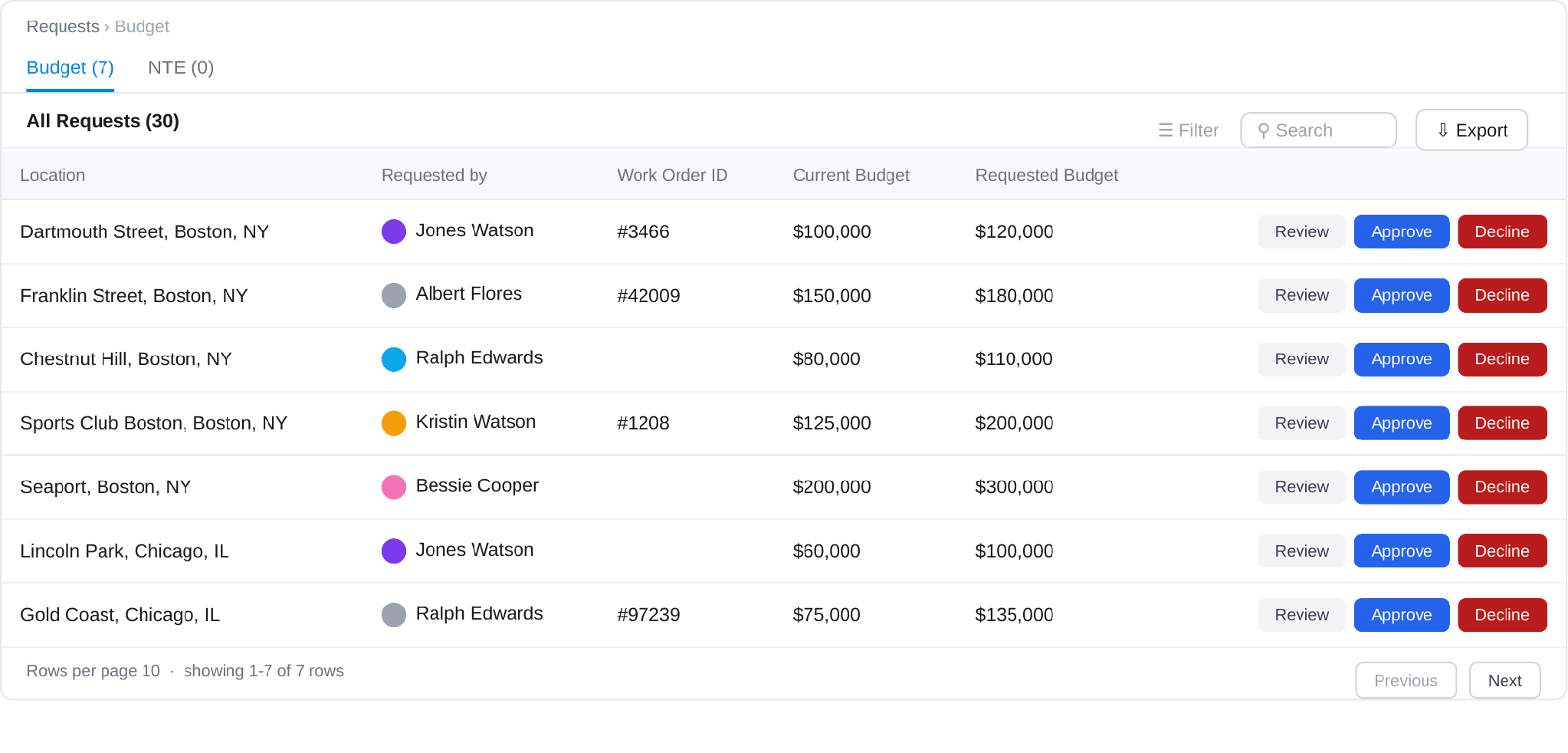
Pending requests, separated into Budget and NTE tabs, with current and requested amounts side by side.
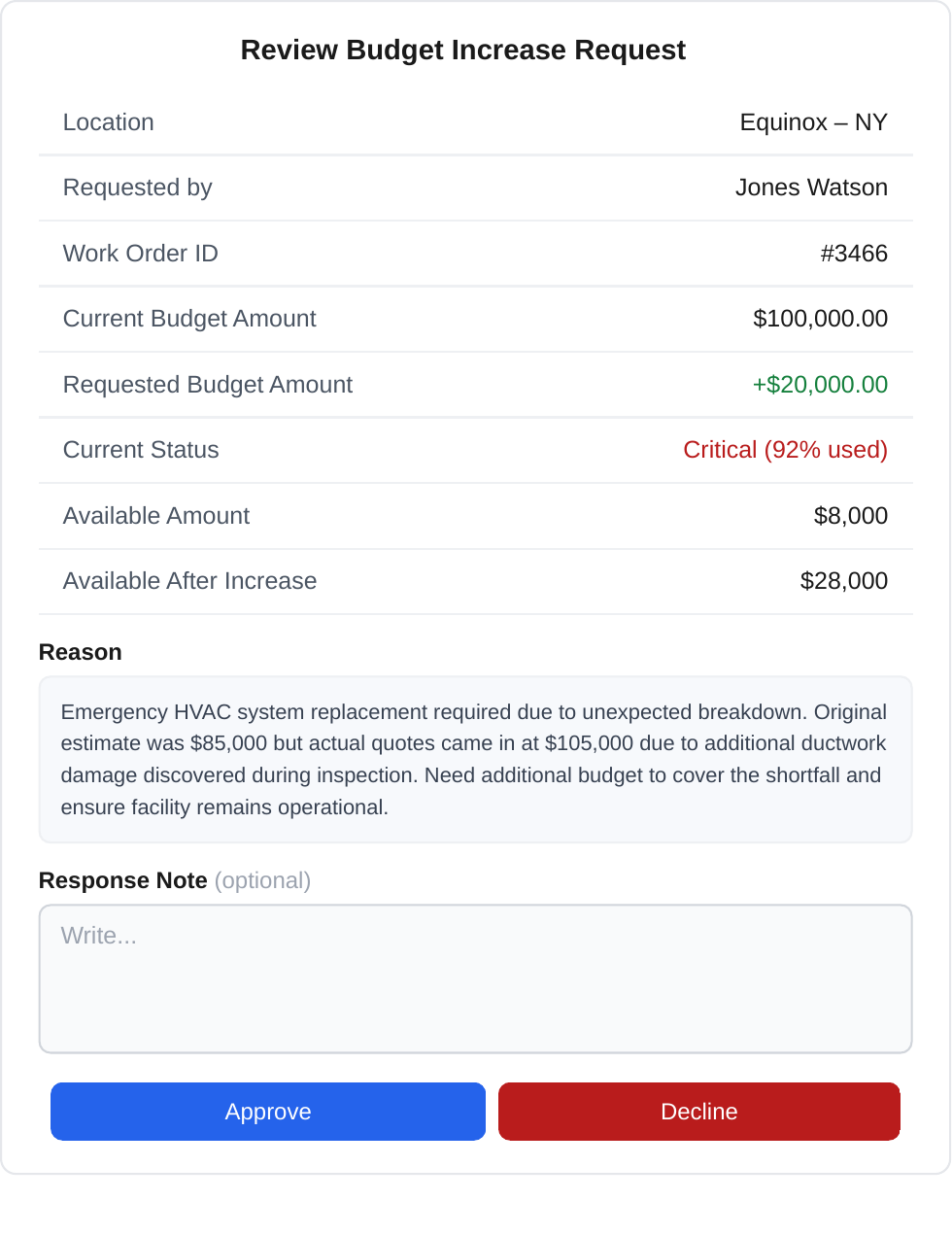
The review window. You can see the effect of the increase before you decide, and add a response note.
NTE requests appear the same way, with the requested amount on each one.
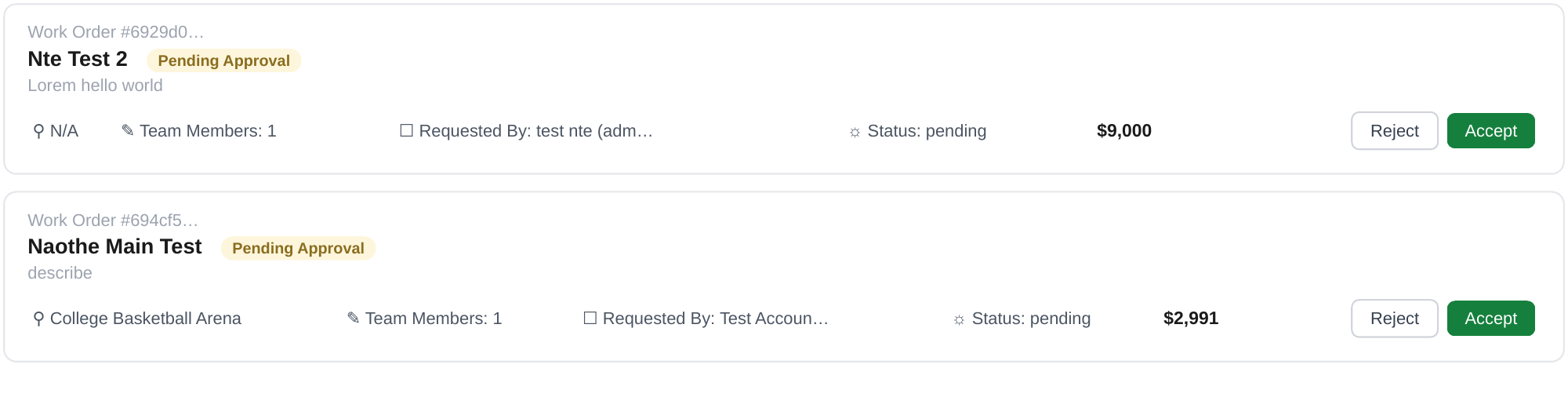
Pending NTE requests awaiting a decision.
Approve or decline promptly. While a request sits waiting, your team cannot raise the work order behind it.
Move budget between locations
- Open the budget detail page for the location you are moving money from, or use the Info tab of that property.
- Click Transfer Budget.
- Choose the destination location, enter the amount, and give a reason.
- Confirm. Both budgets update immediately, and the transfer is recorded in the audit trail.
Facility Managers can transfer from the locations assigned to them; Org Owners can transfer between any locations. LeanSite will not allow a transfer that would leave existing commitments unfunded.
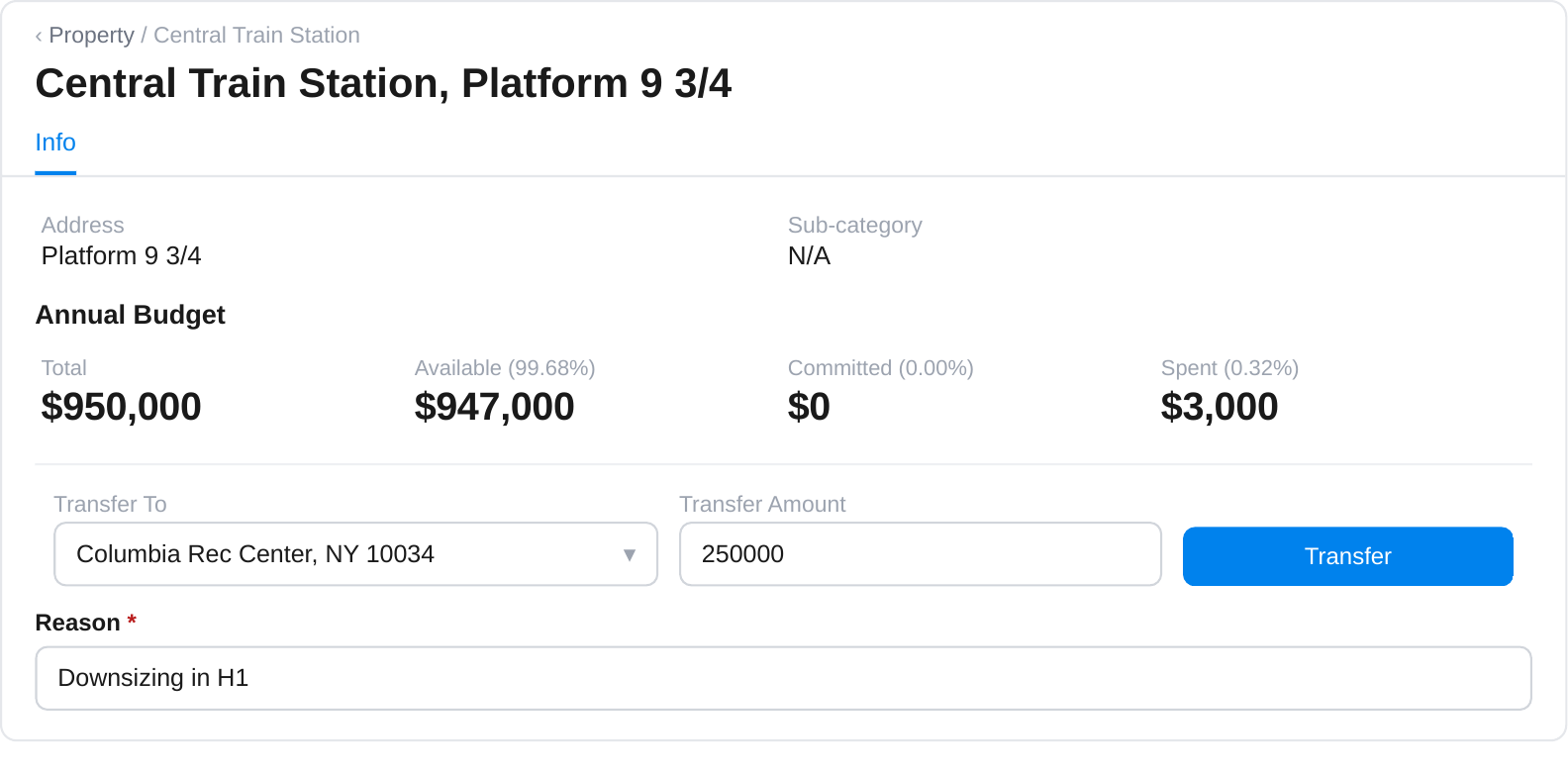
Transfer controls: destination, amount and a required reason.
Budget alerts
You do not have to watch your budgets to catch a problem.
- Warning banners appear automatically when a budget reaches 75%, 90% and 100%.
- Alert emails include the threshold you hit, a summary of Total, Committed, Spent and Available, your recent work orders, and a direct link to the budget.
- Past alerts stay on the budget detail page under the Alerts tab.
Treat the 75% alert as your prompt to plan, not to panic. It is usually the right moment to request an increase or move budget across, while you still have room to work with.
If you are a service provider
- You will see the NTE on any work order assigned to you.
- You cannot submit an invoice above that amount — it is blocked at submission. If the work will cost more, submit a proposal for approval before you proceed.
- If the job comes in under the NTE, invoice your actual amount. The difference returns to your client’s available budget automatically, and the saving is visible to them.
Habits that keep budgets accurate
- Create budgets before the year starts so NTE checks are working from 1 January.
- Put an NTE on every work order, even a rough one.
- Approve or reject invoices promptly. A pending invoice leaves funds locked in Committed, which makes Available look smaller than it really is.
- Cancel work orders you no longer need to release their committed funds.
- Review budget posture per location monthly, not just at portfolio level. Averages hide the site that is about to run dry.
Common questions
Available looks lower than I expected. Where has the money gone?
Check Committed. Active work orders with NTEs hold funds there before anything is paid, and a pending invoice keeps them locked until it is approved or rejected.
My work order was blocked. What now?
The message shows what is available against what you requested. Lower the NTE to fit, request a budget increase, or cancel. Nothing is saved until one of those happens.
We came in under budget on a job. Do we lose the difference?
No. When the invoice is approved below the NTE, the difference returns to Available automatically.
Can I edit a budget total directly?
No. Increases go through the request and approval route, which keeps a record of who asked, why, and who agreed.
Can we set separate budgets per department or service type?
Not today. Budgets are held per location, per year.
One site is quiet and another is busy. Can we rebalance mid-year?
Yes, using Transfer Budget, as long as the transfer does not leave existing commitments unfunded.
Can a vendor go over the NTE if we agree verbally?
Not in LeanSite. They must submit a proposal, and you must approve the higher NTE, before the invoice can go through.
Who gets notified about what?
Org Owners are notified of pending NTE and budget increase requests by email and in the app. Requesters are notified of the decision. Budget owners receive threshold alerts by email.
What is not available today
So you can plan around them:
- Budget periods run the calendar year only. Custom periods, such as a fiscal year starting in April, are not supported.
- Only Org Owners and Super Admins can create budgets.
- Budget totals cannot be edited directly; increases go through the approval route.
- Approval is a single decision by one Org Owner. Multi-step or tiered approval chains are not available.
- Disputed and partially paid invoices are not yet reflected in the budget figures.
If one of these affects how your organisation needs to work, tell your Customer Success Manager. It is useful for us to know which of them actually get in your way.
Getting help
- Use the feedback button in the app to report a problem or suggest an improvement.
- Contact your Customer Success Manager for anything specific to your account or setup.