.png?width=1322&height=525&name=LEANSITE%20LOGO%20(COLORED).png)
This guide explains the common bulk-creation flow and the differences among its three assignment routes. It consolidates the older route-specific batch guides. Recurring work orders remain a separate lifecycle because they create work over time.
Before you startUse bulk creation only when the selected properties share one service category, scope, priority and schedule. Prepare the property or asset list, checklist, supporting documents and route-specific financial information. Remove any property whose work differs materially.
1. Start a batch work orderOpen the bulk work-order creation route. Choose Property Based when the job applies to each selected property. Choose Asset Based when the work must be linked to named assets at those properties.
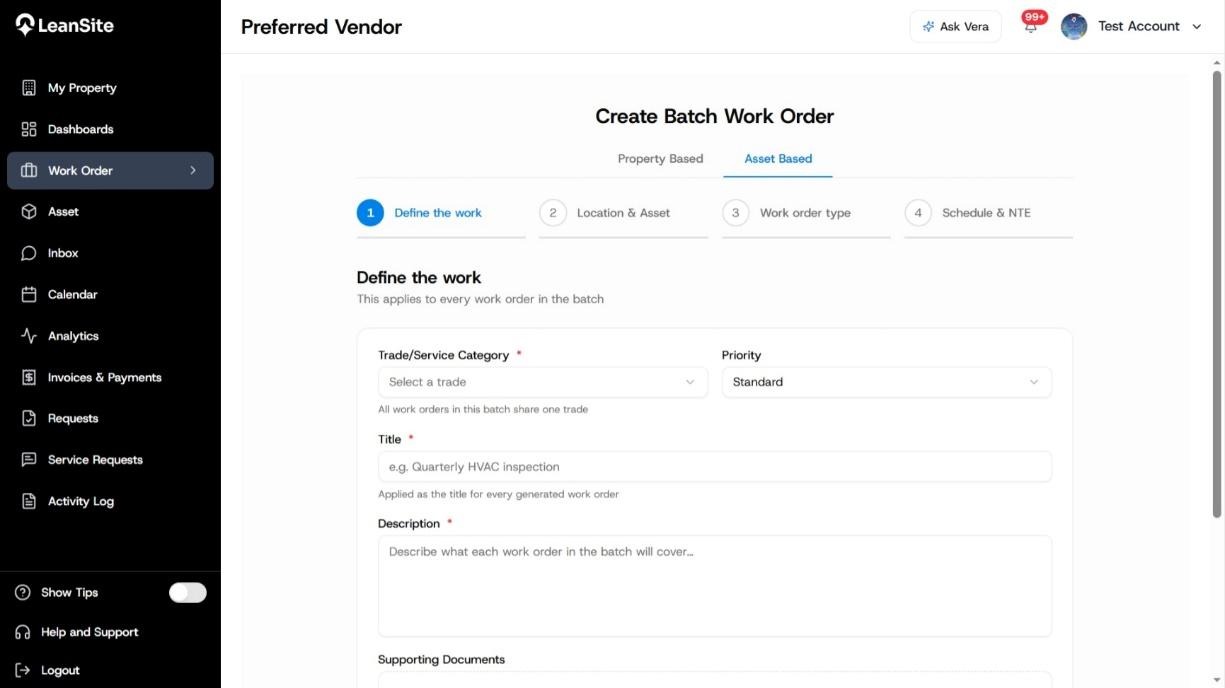
Alt text: Create Batch Work Order showing Property Based and Asset Based options and the four creation stages.
2. Define the common workSelect one Trade/Service Category for the batch. Set the shared priority, title and description, then add the checklist, notes and supporting documents required at every location. The title and description should remain accurate when read on any child work order.
Run a separate batch for another trade or a substantially different scope.
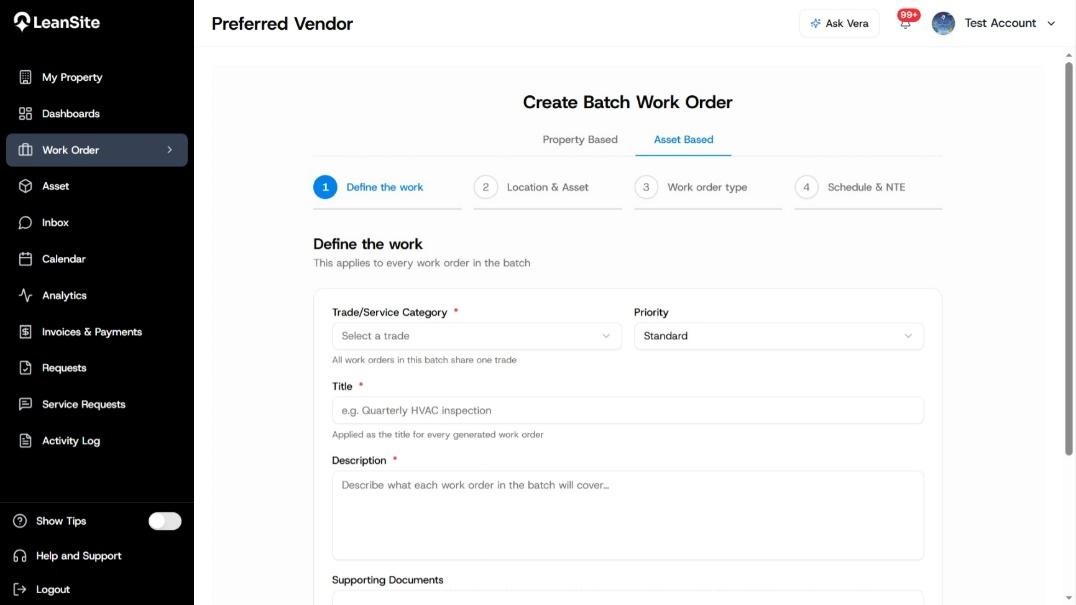
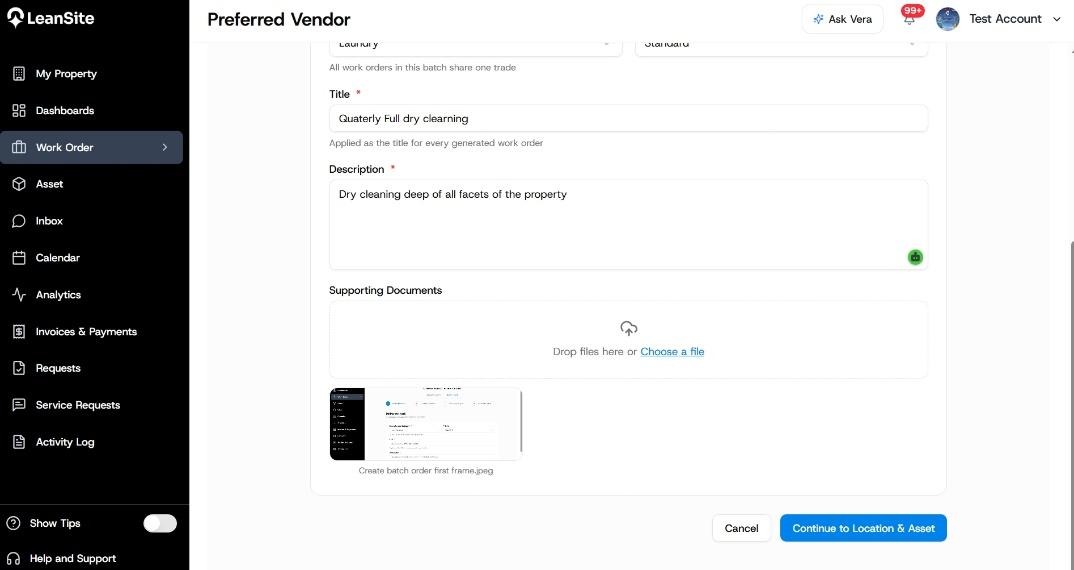
Alt text: Batch definition showing one trade, shared priority, title, description, checklist, notes and supporting documents.
3. Select properties and assetsChoose every property that needs the work. For an asset-based campaign, expand each property and select the relevant assets. Review the selected count and remove locations that require a different scope, schedule or financial limit.
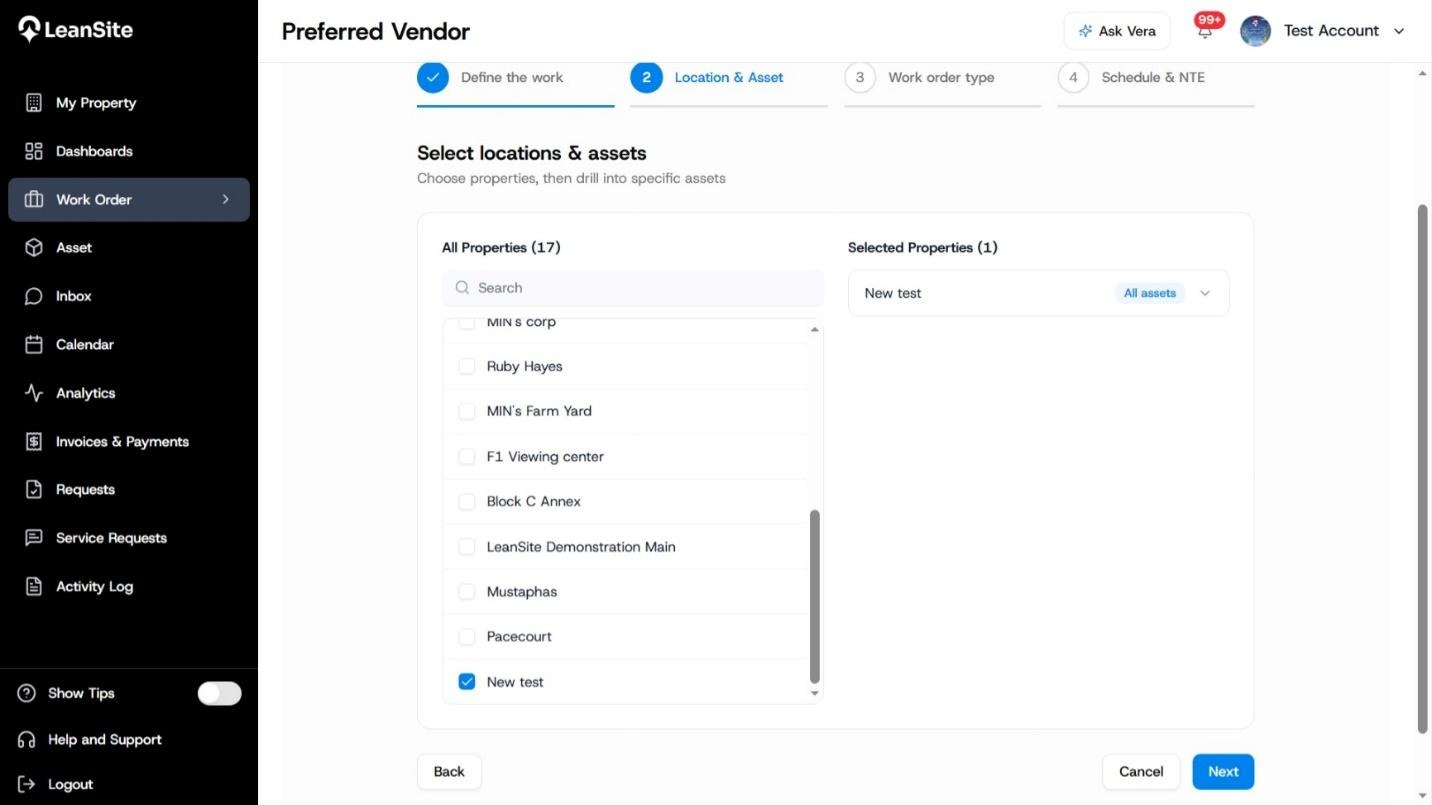
Alt text: Batch property and asset selector with available and selected locations.
4. Select the assignment routeChoose the route that matches who will perform the work:
|
Assignment route |
Use it when |
Result after creation |
|
Internal Team |
In-house teams cover the selected service category at each property |
Each child order routes to the eligible team for its property |
|
Preferred Vendor |
Approved providers already cover the properties and trade |
Each child order is assigned through the selected preferred-vendor arrangement |
|
External Service Provider / Marketplace |
The work should be opened to external providers |
Each child order enters its own marketplace quote and approval process |