.png?width=1322&height=525&name=LEANSITE%20LOGO%20(COLORED).png)
Create a QR code to take people directly to the right mobile service request form at a property. The code can anchor the request to a property, area or asset, then send the completed request to the FM review queue. Test the code from a phone before you print or share it.
Applies to
Administrators who manage service-request templates, QR codes or property request intake.
What this does and does not do
The QR code starts a service request. It does not dispatch a vendor, create a work order or bypass FM review. The FM decides how the request should be handled after it is submitted.
Before you start
Create and test the service-request template first. Decide which physical context the code should represent: a property, a particular area or a specific asset. Use a label that someone managing several codes can recognise without scanning it, such as “Lobby restroom maintenance request”.
Create the QR code
- Open QR Code Setup and select New QR Code.
- Enter the QR Code Label.
- Select the Form Template the code should open. The template controls the questions a requester will see.
- Select the relevant Property, then select the asset or area the code should represent.
- Select Create QR Code.
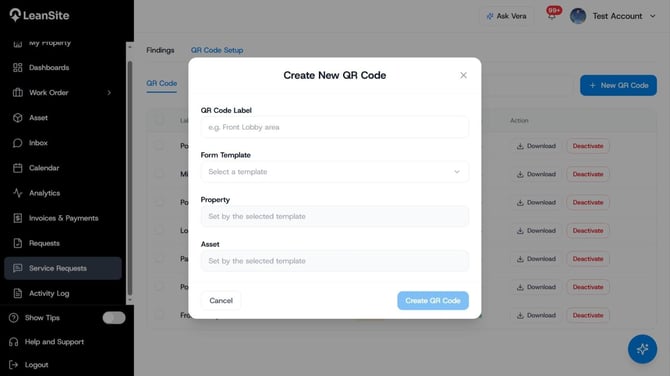
Create New QR Code
Test the full request journey
Open the new code from the QR-code list and scan it with a phone before printing or sharing it. Confirm that the form opens on a mobile browser, shows the intended context and asks the right questions. Submit a realistic test request and check that the requester receives a confirmation and reference ID.
Then open the Service Requests queue and confirm that the FM can see the property or context, description, urgency and any photo. A request marked Urgent still requires FM review; the FM decides whether to create a work order, ask for more information, merge it with an existing request or dismiss it.
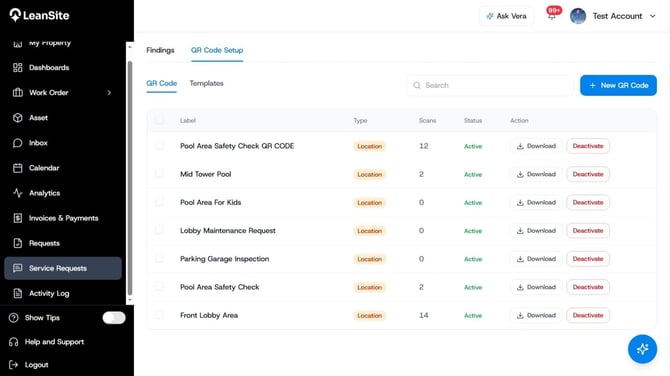
QR Code creation for specific service request
Expected result
The live QR code opens the intended form on a phone and carries the correct property, area or asset context into the request. A completed test request gives the requester a reference ID and appears in the FM review queue with enough information to assess it.
Place the code where it can be used
Place the code at the point where the request is likely to arise: beside a shared facility, asset or access point. Add a short instruction such as “Scan to report a maintenance issue”, and print the code large enough to scan easily with reasonable contrast.
Do not place an internal form in a public location if its questions or prefilled context could expose sensitive property information. Test from the same audience and device type that will use it in practice.
Manage live codes
Use QR Code Setup to find a code by its label and confirm its template and property association. When a space changes purpose or a template changes, scan the live code and submit another test request. Deactivate or replace obsolete codes promptly so people do not submit the wrong form.
If the code does not work as expected
- The code opens the wrong form or location. Remove it from use, correct the linked template or context, then test it again before redeployment.
- The form exposes information that should not be public. Remove the code from the public location and use an access method appropriate to the intended audience.
- A request does not reach the expected queue. Confirm the test submission and reference ID, then contact Leansite Support with the code label, property and time of the test.