.png?width=1322&height=525&name=LEANSITE%20LOGO%20(COLORED).png)
This Applies to
Property and operations users who can create work for a preferred vendor.
What this does and does not do
The recurring request governs future occurrences. It does not merge their histories or turn them into one completion record. Changes to a series affect future work only; work orders already generated remain individual records.
Before you start
Confirm that the work truly repeats, the vendor can cover the properties and times required, and the standard scope will remain appropriate across future visits. Prepare the title, description, checklist, supporting documents and start date before you create the series.
Recurring work is a poor fit where every visit requires a substantially different scope, date or vendor decision. In that case, create separate work orders or use a controlled batch for a one-time campaign.
Build the recurring request
- Start a preferred-vendor work order and enter the property, vendor and standard work details as you would for a one-off order.
- In the scheduling section, turn on the repeat option and choose the frequency available in the current screen.
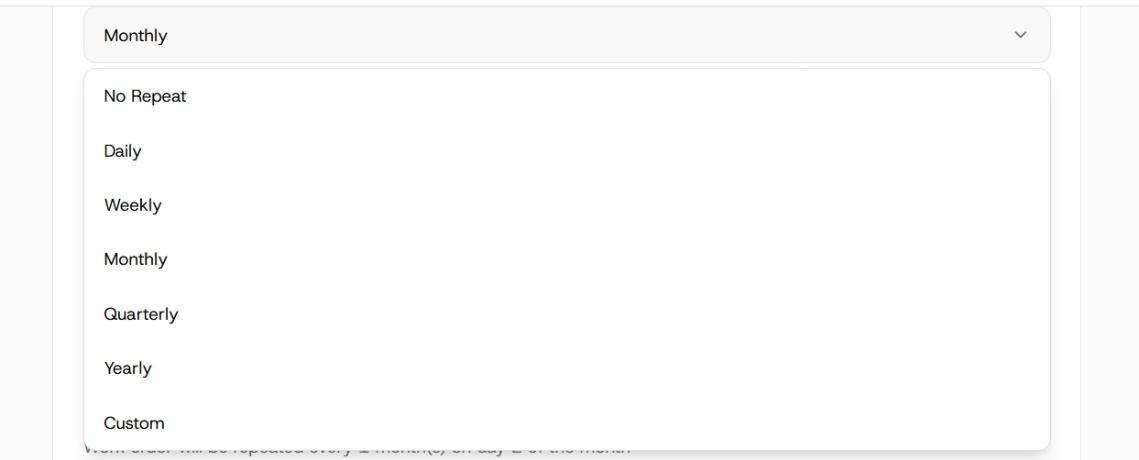
Select asset work order repeat frequency
- Set the start date, interval and, for a weekly pattern, the days on which the work should recur. Read the schedule summary before continuing; it is the clearest check that the recurring pattern matches your intention.
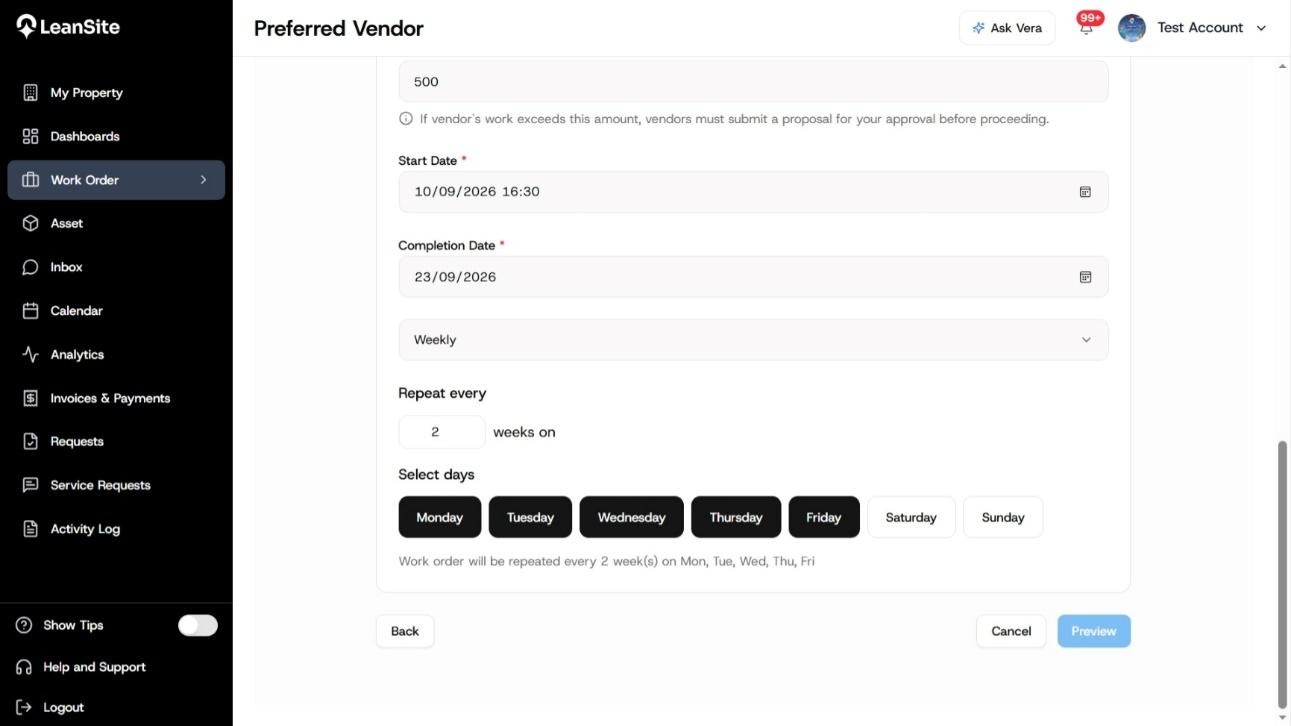
Select repeating work sequence
- Set the time and any available deadline or urgency details based on when the property can receive the vendor. Record access constraints in the work description so they travel with the template.
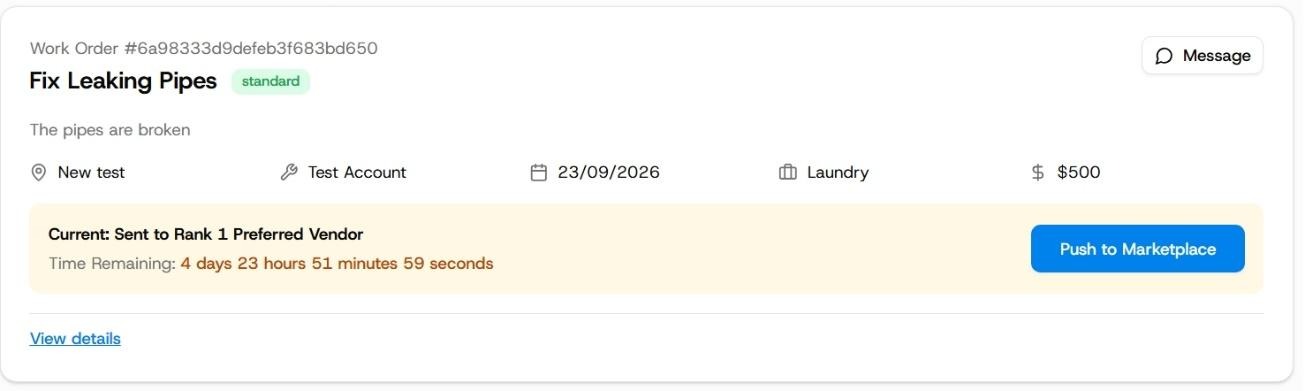
Each preferred vendor work order has a time span based on urgency
- Review the vendor, selected property or asset, standard scope and recurrence summary together, then create the series.
Expected result
Use the series to monitor the upcoming schedule, and open an individual occurrence when you need to manage work already generated. An occurrence has its own record and can be assigned, updated, completed or closed independently of the other visits.
For a continuing arrangement, you can pause, resume or end the template. Changes to the template affect future occurrences only; they do not rewrite work orders that have already been created or completed. Leansite does not provide holiday or weekend skipping, series-level bulk operations or automatic NTE escalation, so plan those exceptions deliberately.
If the arrangement changes
- One visit needs a different scope or date. Manage that occurrence separately. Keep the shared template intact unless the change should apply to future visits as well.
- The vendor relationship changes. Pause or end the series before the next work is generated, then create or resume an appropriate arrangement only when the future owner is clear.
- The property closes temporarily. Pause the series rather than creating future work orders for a site that cannot receive the vendor.
You need to skip a holiday or a one-off date. Leansite does not provide holiday or weekend skipping. Manage the affected occurrence separately and review the series before the next occurrence is generated.