.png?width=1322&height=525&name=LEANSITE%20LOGO%20(COLORED).png)
This guide explains the main FM Portal navigation and the shortest route from a property or issue to the correct workspace. Each operational task has its own guide, so this article stays at orientation level.
Before you startSign in with your assigned FM Portal account. The records and actions you see depend on your organisation role and property access. Ask an Org Owner to correct your access when an expected property or module is missing.
1. Start with the navigation and account controlsThe left navigation remains available while you move through the portal. The current supplied view shows My Property, Dashboards, Work Order, Asset, Inbox, Calendar, Analytics, Invoices & Payments, Requests, Service Requests and Activity Log. Show Tips, Help and Support and Logout appear at the bottom. The top bar contains Ask Vera, the notification bell and the account menu.
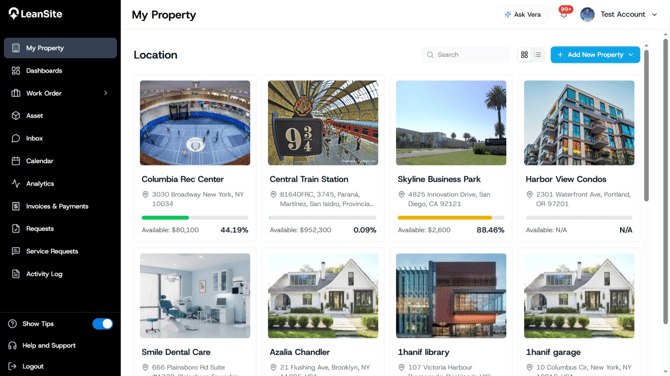
Alt text: LeanSite FM Portal showing the full left navigation, Ask Vera, notification bell and an open property record.
Select My Property, then open the relevant property. Its Info tab shows the property identity, address, category and budget position. The other tabs bring together the property’s work orders, assets and vendor relationships. This route gives you the operating context before you adjust a budget, create work or inspect history.
Use the dedicated Asset, Work Order or Analytics module when your question spans several properties.
3. Choose the correct work-order routeExpand Work Order to open the route relevant to the job. The current navigation includes Vendor Marketplace, Preferred Vendor, Internal Task and Recurrences. Use Internal Task for work owned by an in-house service team. Use the external routes when a service provider must perform the work. Use Recurrences to manage work created on a repeating schedule.
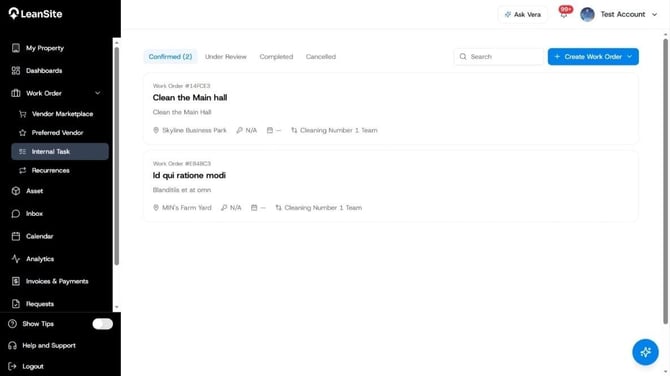
Alt text: Expanded Work Order navigation showing Vendor Marketplace, Preferred Vendor, Internal Task and Recurrences.
4. Use communication, scheduling and oversight modulesOpen Inbox for work-related conversations. Open Calendar to view scheduled work by date. Use Analytics for Work Order, Budget, Operational Health and Report views. Activity Log provides the historical record of recorded platform events and helps you trace who changed a record and when.
The notification bell surfaces recent events that need attention and links back to their operating records. The Activity Log supplies the broader historical view.
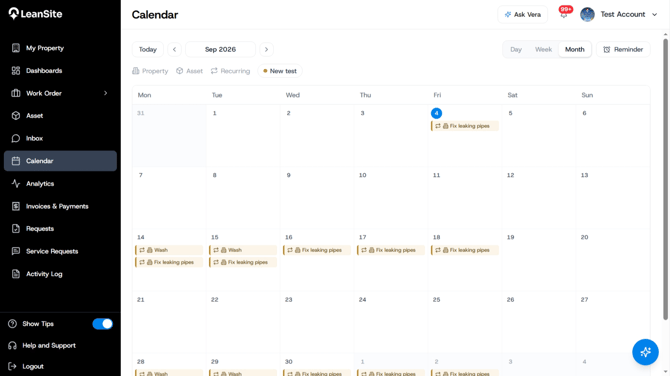
Alt text: Calendar view showing the recurrent projects
5. Review approvals and financial activityOpen Requests when a team member or operating record requires an approval. The supplied build includes an Approvals (NTE) area for not-to-exceed decisions. Use Invoices & Payments to review invoice and payment records. Complete the actual budget, NTE or payment decision in its operating workspace, then use the Activity Log when you need the audit trail.
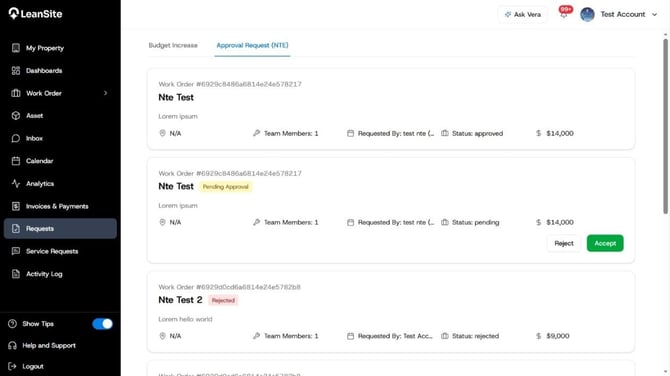
Alt text: Requests from Team page with the Approvals NTE subsection selected.
6. Configure and review service-request intakeUse Service Requests for request forms, QR-code set-up and submitted findings. A requester can submit an issue from a linked form. An FM reviews the resulting finding and decides whether to create work, request more information, merge it with an existing record or dismiss it.
7. Get guidance or contact supportSelect Ask Vera for contextual navigation and facilities guidance supported in the current release. Vera does not replace an approval, edit live records or make an operational decision for you. Use Help and Support for a product problem that requires the support team, and include the affected record reference and a clear description.
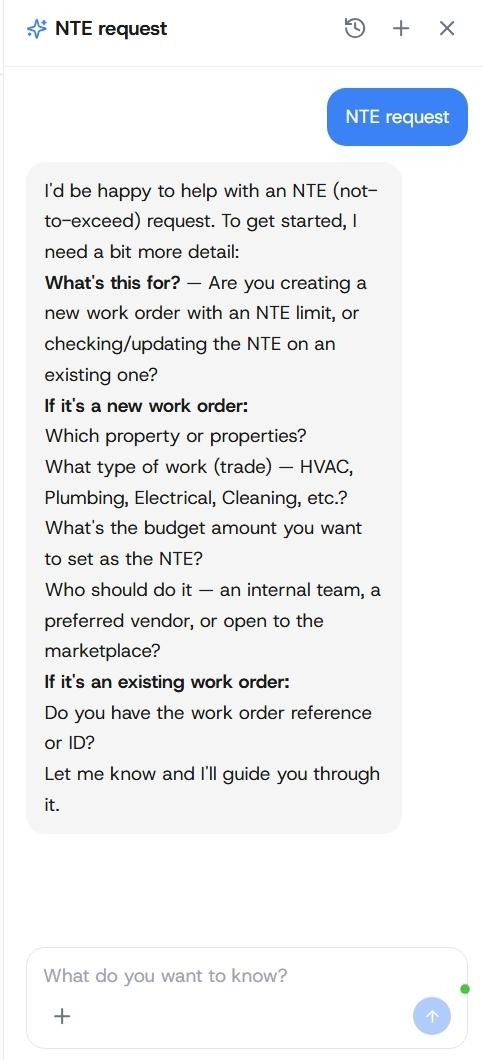
Alt text: Vera guidance panel in the FM Portal;
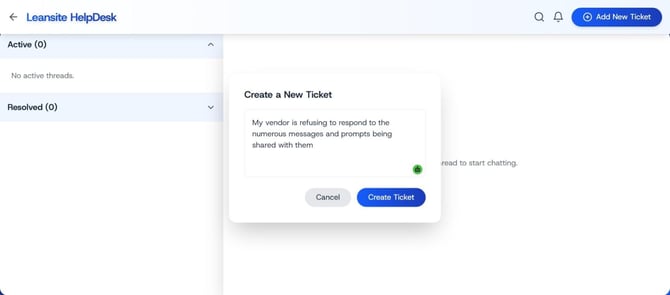
Alt Text: LeanSite HelpDesk ticket form.
Expected resultYou can identify the correct starting point for a property, work order, service request, message, schedule, financial record, report, approval or support issue without searching through unrelated modules.
If a module or record is missingConfirm that you selected the correct organisation and property. Ask an Org Owner to review your role and property scope. Contact LeanSite Support when the access assignment is correct and the expected module still does not appear.