.png?width=1322&height=525&name=LEANSITE%20LOGO%20(COLORED).png)
Payment is the last step of a longer journey that starts when you post a job.
- Create a service request. Post the job in the Marketplace with the property, service category, description of the work, timing and any supporting information.
- Accept a bid. Review the bids from service providers and choose who you want to work with.
- Receive an invoice. Once the provider has completed the work, their invoice appears in Invoices & Payments.
- Pay securely. Open the invoice, check the charges, choose a payment method and submit.
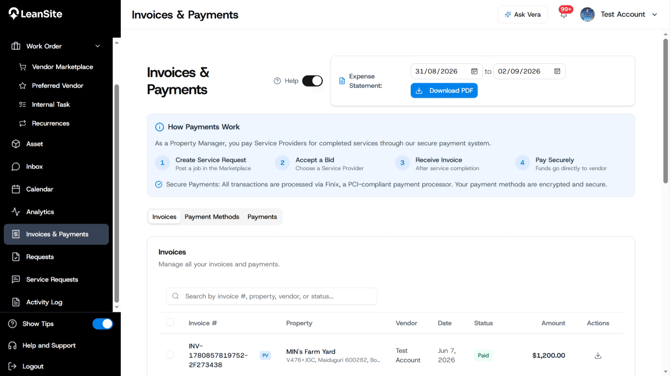
Invoices & Payments. The three tabs — Invoices, Payment Methods and Payments — are where everything in this guide happens.
Before you payRun through this quickly. It takes a few seconds and prevents most payment problems.
- The work has actually been completed.
- The invoice is for the right property and the right service provider.
- The amount matches what you agreed.
- The service provider has finished payment onboarding. If they have not, the payment will be declined — see “If the payment fails” below.
- You have a card or bank account available to pay with.
- Go to Invoices & Payments.
- Open the Invoices tab.
- Find the invoice. You can search by invoice number, property, vendor or status.
- Select the invoice to open it.
Check the invoice summary: invoice ID, vendor, date and total amount. Use Download PDF if you need a copy for your records, then click Pay Invoice when you are ready.
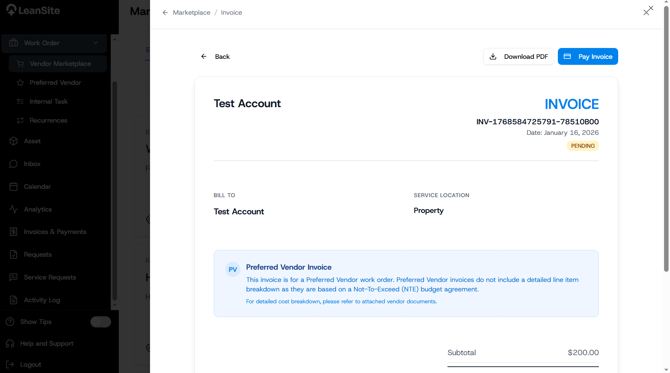
An invoice open for review, with Download PDF and Pay Invoice at the top.
Preferred Vendor invoices. If the invoice is marked “Preferred Vendor”, it will not show a line-by-line cost breakdown. These invoices are billed against the Not-to-Exceed (NTE) budget agreed on the work order instead. For a detailed breakdown, check the vendor documents attached to the work order.
Step 2: Choose or add a payment methodUnder Payment Method, select a card or bank account you have already saved. If you have none saved, or you want to use something different, select Add New.
Add a cardChoose Card and enter the cardholder name, card number, expiry date and CVV, followed by the billing address.
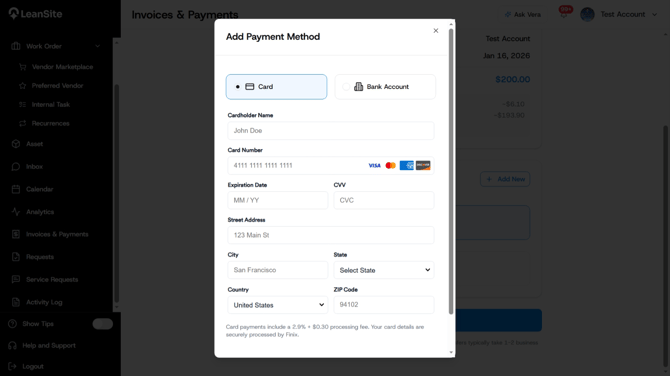
The Add Payment Method window with Card selected.
Add a bank accountChoose Bank Account, then search for your bank or pick it from the list shown and follow the prompts to connect it. If your bank is not listed, use Enter details manually.
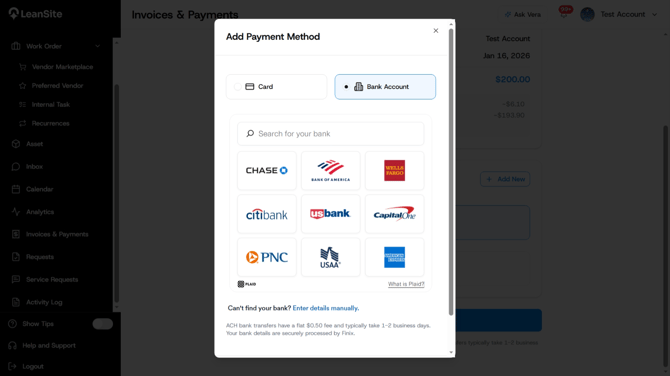
The Add Payment Method window with Bank Account selected.
Which to use, and who pays the feeYou are charged the invoice total either way. The processing fee is deducted from the vendor’s payout rather than added to your bill, which is why the invoice screen shows both the fee and the vendor’s net payout.
|
Method |
Processing fee |
Timing |
|---|---|---|
|
Card |
2.9% + $0.30, deducted from the vendor’s payout |
Vendor receives funds within 1–2 business days |
|
Bank account (ACH) |
Flat $0.50, deducted from the vendor’s payout |
Bank transfers typically take 1–2 business days |
Because card fees are higher for the vendor, paying by bank transfer leaves your provider with more of the invoice. Worth considering on larger jobs.
Step 3: Submit the paymentWith a valid payment method selected, check the amount once more and click the payment button. It shows exactly what will be charged, for example “Pay $800.00”.
Clicking Pay authorises the payment to be processed through Finix.
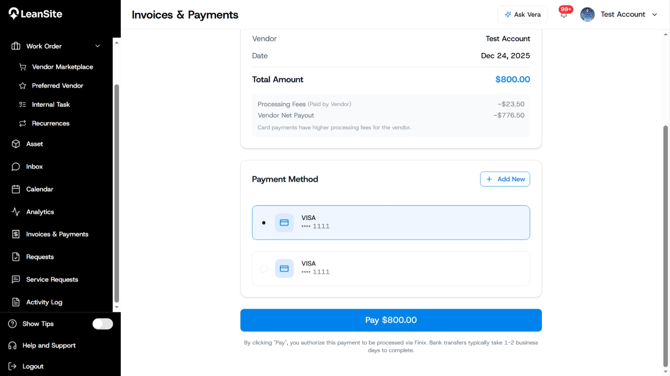
The payment screen: total amount, the processing fee and vendor net payout, your saved payment methods, and the Pay button showing the amount to be charged.
Payment confirmationYou will see Payment submitted successfully and a confirmation page showing the amount submitted, with a note that the vendor will receive the funds within 1–2 business days. Select View Payment History to see the transaction.
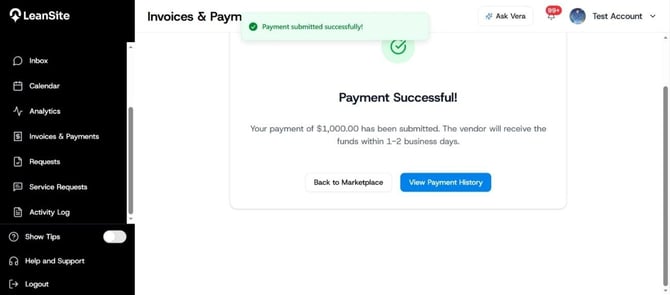
The confirmation page after a successful payment.
If the payment failsThe most common reason a payment cannot be completed is that the service provider has not finished payment onboarding. You will see:
Payment Failed — Vendor is not onboarded for payments. Please wait for vendor approval.
Nothing has been charged. Wait until the vendor’s payment onboarding has been approved, then reopen the invoice and pay again. If the vendor is unsure what they need to do, ask them to check their own onboarding status in their LeanSite account.
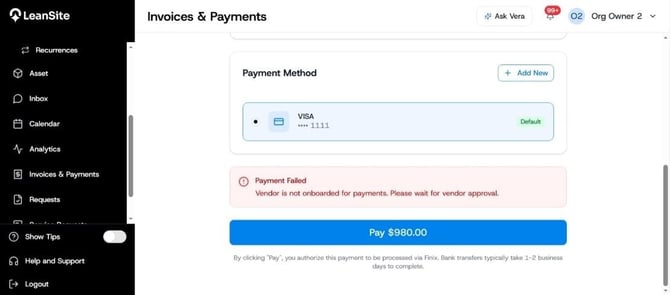
A payment blocked because the vendor is not yet onboarded for payments.
Track invoices and paymentsEverything stays in Invoices & Payments.
- Invoices — every invoice with its property, vendor, date, status and amount. Statuses include Paid and Processing, and you can download any invoice from the list.
- Payment Methods — the cards and bank accounts saved on your account.
- Payments — your payment transactions, searchable by vendor, property, invoice number or status, with views for All Payments, Returns and Disputes.
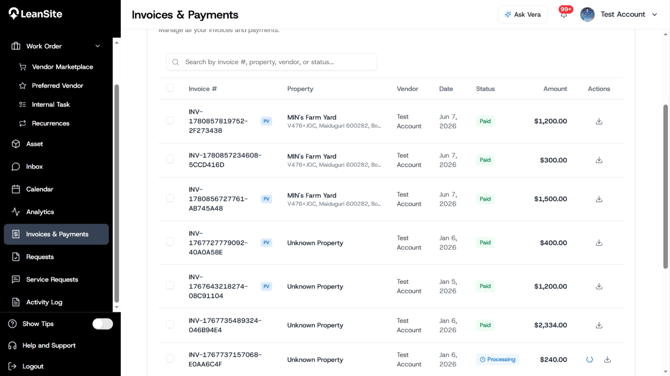
The Invoices tab, with status and amount for each invoice.
For a period summary, set a date range at the top of the page and use Download PDF next to Expense Statement. For a fuller audit trail, open Activity Log and filter for payment activity.
How payments affect your budgetIf your organisation uses budgets and NTEs, paying an invoice moves money between two of the four budget figures.
- Committed falls by the NTE amount that was being held for that work order.
- Spent rises by the invoice amount.
- If the invoice came in below the NTE, the difference returns to Available automatically.
The budget updates within about 10 seconds. One habit worth keeping: approve or reject invoices promptly, because a pending invoice leaves funds locked in Committed and makes your Available budget look smaller than it is.
Common questionsWill I be charged the processing fee on top of the invoice?
No. You are charged the invoice total. The processing fee is deducted from the vendor’s payout, and both figures are shown to you on the payment screen before you pay.
How long until my vendor has the money?
Funds typically reach the vendor within 1–2 business days of submission.
Can I pay part of an invoice?
No. Payment is submitted for the full invoice amount shown on the payment button.
Why is there no cost breakdown on this invoice?
It is a Preferred Vendor invoice, billed against the NTE agreed on the work order. Detailed costs are in the vendor documents attached to that work order.
My payment failed. Have I been charged?
No. If the vendor is not onboarded for payments, the payment does not go through and nothing is taken. Try again once their onboarding is approved.
Where do I find a receipt or a copy of an invoice?
Download the invoice from the Invoices tab, or from the invoice itself using Download PDF. For a whole period, use the Expense Statement download at the top of Invoices & Payments.
Can I save more than one card or bank account?
Yes. Saved methods appear under Payment Method, and you select which one to use at the time of payment.
Is my card data safe?
Payments are processed through Finix, a PCI-compliant payment processor. Your payment details are encrypted and handled securely throughout.
Getting help- Use the feedback button in the app to report a problem.
- If a payment behaves unexpectedly, note the invoice number before you get in touch — it is the fastest way for us to find the transaction.
- Contact your Customer Success Manager for anything specific to your account.
Your account may look slightly different depending on your role, your settings, and any updates released since this guide was written.