.png?width=1322&height=525&name=LEANSITE%20LOGO%20(COLORED).png)
This guide covers the administrator journey from form design through QR-code deployment and testing. It ends when a test request reaches the FM queue. The separate triage guide explains what an FM does with the submitted finding.
Before you start
Decide which property, area or asset the QR code represents. Prepare the questions an FM needs to understand the issue, its location, urgency and supporting evidence. Keep the form short enough for a requester using a phone at the point of need.
1. Open the template workspaceOpen Service Requests, then select the template area and start a new form template. Use a name that identifies the intended property or use case.
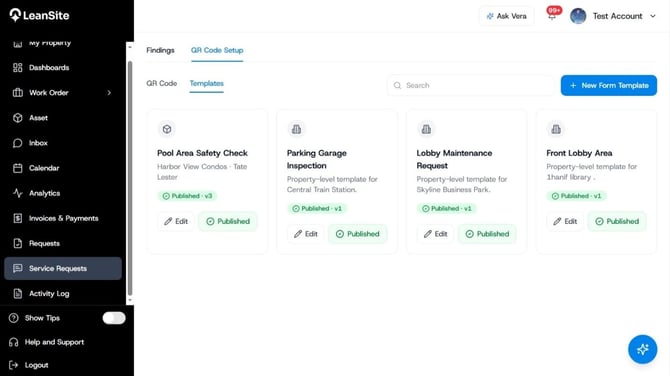
Alt text: Service Request Templates workspace
Select the relevant property and service category where the current form requires them.
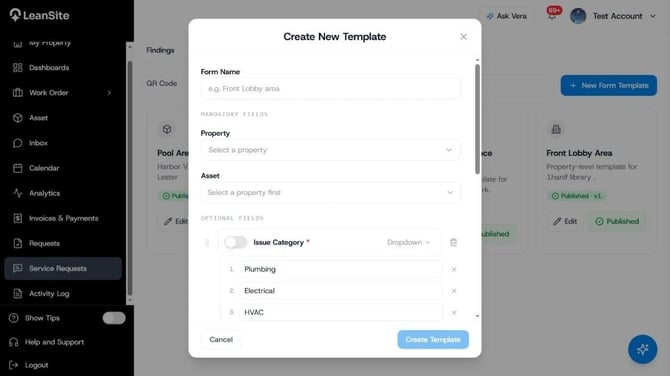
Alt text: New service-request template details.
2. Build a form that supports a triage decisionAdd questions for the issue description, exact area or asset context and any evidence the FM needs. Include photo upload when an image will help the FM assess the request. The documented v1 intake uses Standard and Urgent as requester urgency options. Explain the difference in plain language and reserve Urgent for conditions requiring immediate attention.
Make a field required only when an FM cannot safely decide without it. Contact information can remain optional when anonymous or low-friction reporting is appropriate.
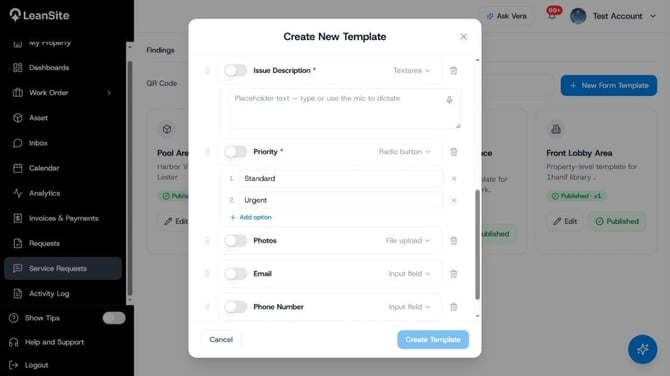
Alt text: Service-request form builder showing configurable questions and required-field controls.
3. Save, preview and test the formSave the template, then preview it in a mobile-sized view. Confirm that every question is understandable without internal facilities terminology. Submit a controlled test and check that property, location and asset context remain correct.
 Alt text: Internal form builder; mobile request form with Standard and Urgent options; submission confirmation with reference ID.
Open QR Code Setup and select New QR Code. Enter a label that identifies the physical placement, then select the form template. Confirm the property and asset values set by that template. Create the QR code only after the relationship is correct.
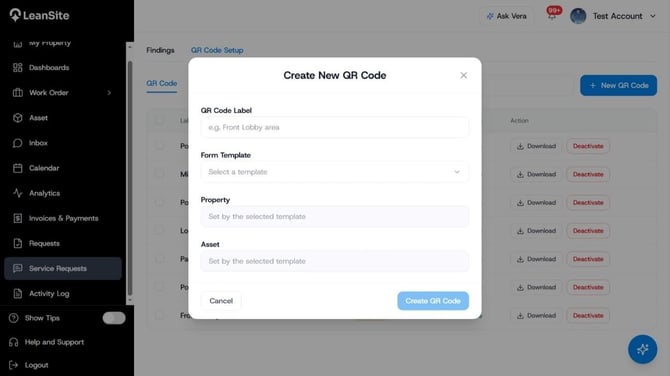
Alt text: Create New QR Code form showing QR Code Label, Form Template, Property and Asset.
5. Download and label the codeFind the new code in the QR Code list and use Download to prepare it for print. Add a short instruction beside the code so the person knows that scanning it opens a maintenance-report form. Record the intended placement in the label and deployment register. Keep separate codes for distinct property or asset contexts.
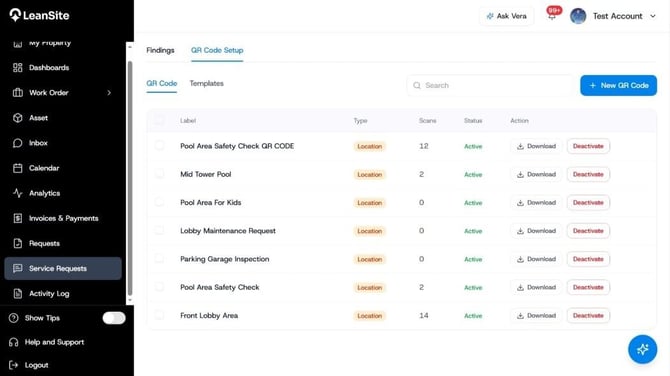
Alt text: QR Code Setup list showing created codes and their Download and Deactivate actions.
6. Test the complete intake chainScan the printed or displayed code with a phone. Confirm that the correct form opens without requiring the LeanSite app. Submit the test with a recognisable description and confirm that the requester receives a reference ID. Return to Service Requests > Findings and verify that the record appears with the correct context and urgency.
The current v1 workflow does not auto-route the request. An FM must choose Create Work Order, Request More Information, Merge with Existing or Dismiss.
7. Deactivate a code that should stop accepting requestsUse Deactivate from the QR Code list when a posted code should no longer accept requests. Remove or replace every physical copy associated with it. Test the replacement before closing the change.
Expected resultA requester can scan the deployed code, open the correct mobile form, submit an issue and receive a reference ID. The request reaches the FM Findings queue with enough context for a deliberate triage decision.
If the wrong form opensDeactivate the affected code, confirm its selected template and property or asset context, then generate and test the corrected code. Do not leave both versions posted in the same location.
Related articles- Review and Triage Service Requests
- Submit a Service Request from a QR Code
- Create a Work Order: Internal Team vs. External Service Provider
Use the Activity Log