.png?width=1322&height=525&name=LEANSITE%20LOGO%20(COLORED).png)
Use the Activity Log to find a recorded action or change, see when it happened and open the record connected to it. It is the audit trail for work orders, properties, payments, users and other account activity. Use the underlying record, rather than the log itself, when you need to take an operational action.
Applies to
- Users with access to Activity Log.
What this does and does not do
The Activity Log helps establish the recorded sequence of events. It does not resolve a failed payment, settle a dispute, change a work order or explain every decision surrounding an event. Use the linked payment, invoice, property or work-order record for the permitted next action.
Before you start
Identify the narrow question you need to answer and the strongest known detail, such as the property, record type or date. Use that detail to filter the log instead of beginning with the full account history.
Find an event
- Open Activity Log from the left-hand navigation. The main list shows recorded events; selecting an entry opens its details in the right-hand panel.
- Use the filters at the top of the list to narrow the search. The visible filters include Category, Property, User and Date. Start with the most certain fact you have, such as a property or date, then add filters only when they remove genuine noise.
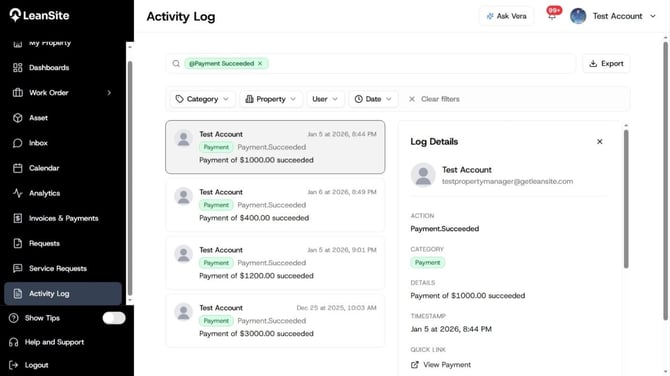
Activity Log, Payment Successful Filter Applied
- Select a matching entry and read the action, time, actor and linked-record information before drawing a conclusion. The entry confirms a recorded action; it may not explain the full operational reason behind it.
Use categories deliberately
Use Category first in a high-volume account when you know the area of the product involved. For example, begin with payment activity when investigating a payment question, rather than scanning the entire account history.
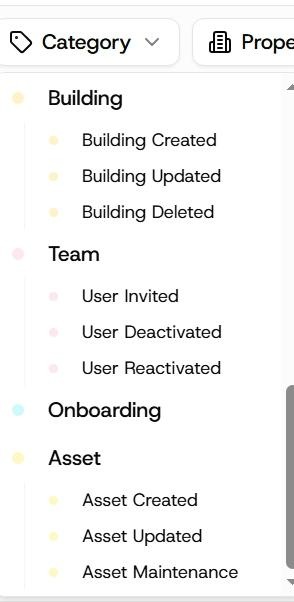
Some of the aforementioned Categories divided into various categories
Expected result
You can narrow the account history to a relevant event, identify its time and actor, and open the linked record for the next permitted action. The event remains part of the account’s audit trail even after the operating record is updated.
Investigate a payment event
- Filter the log to the relevant payment category, property and date.
- Open the event and use the linked payment or invoice record when you need the underlying status or history.
- Take the permitted next action from that payment or invoice record. The Activity Log helps establish the sequence of events; it does not resolve a failed payment or dispute on its own.
Use the log with other oversight tools
Use notifications to surface work that needs attention now. Use the Activity Log when you need the durable history of what was recorded, by whom and when. For a work-order or payment investigation, return to the linked record to see the operative status, communicate, or take an authorised action.
Good investigation habits
Keep the question narrow: “Was the payment recorded on Tuesday?” is a better starting point than “What happened to this property?” Record the property, date, category and entry time before escalating an issue. When sharing a finding with a colleague, include the linked-record name and time so they can reproduce the search without relying on a screenshot.
If you cannot find the event
- There are too many results. Start again with the property and date, then add Category or User only when you can confirm the relevant value.
- The event has no answer to the operational question. Open the linked record and review its current status and history. Escalate with the property, record name, date, category and event time.
- You do not have access to the log or linked record. Ask your organisation’s account administrator to confirm the required access before sharing sensitive record information.
Related help
- Understand invoices and payment status
- Track, update and verify a work order
- Get help and contact Leansite Support