.png?width=1322&height=525&name=LEANSITE%20LOGO%20(COLORED).png)
This guide covers a direct adjustment to one property’s annual budget. To move existing funds from one property to another, use Transfer Budget and follow the transfer guide.
Before you startYou need access to the property’s financial information and permission to adjust its budget. Prepare the revised total limit and a clear reason that another authorised user can understand later.
1. Open the propertySelect My Property, then open the property whose budget you need to change. On the Info tab, review the Annual Budget summary, including Total, Available, Committed and Spent.
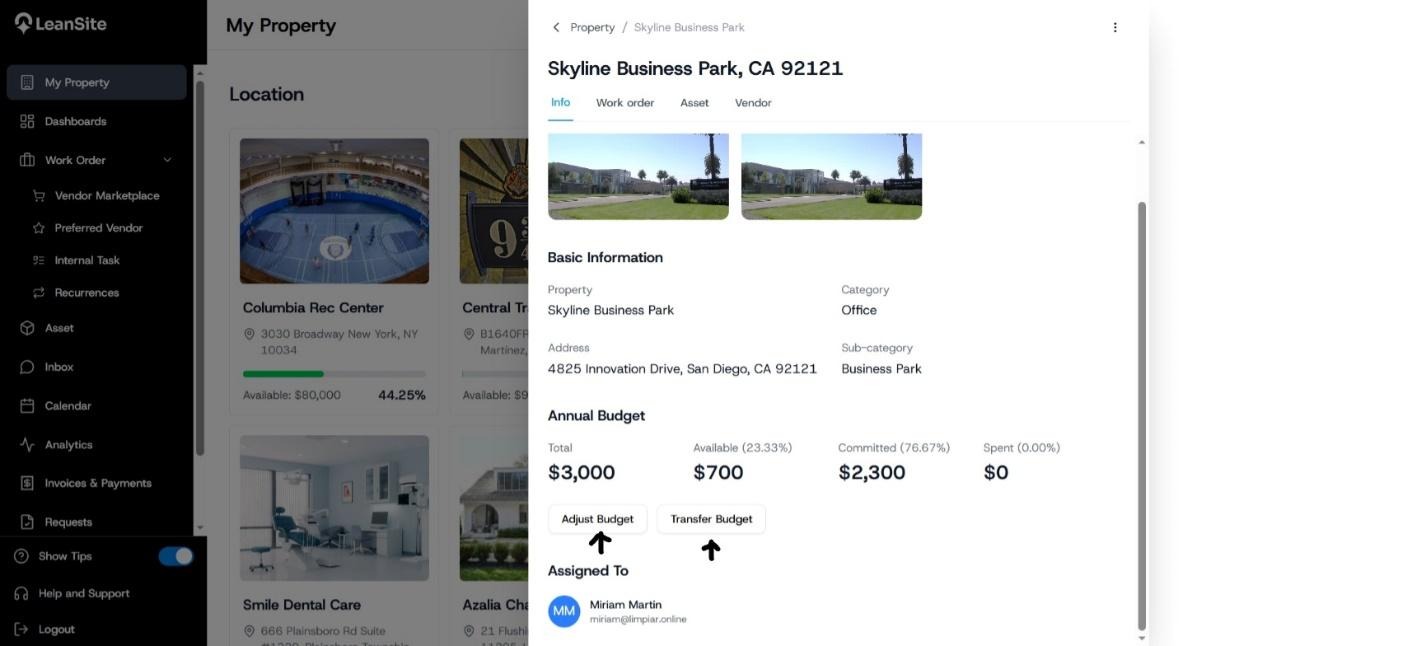
Alt text: Property Info tab showing the annual-budget summary and the Adjust Budget and Transfer Budget actions.
2. Open the adjustment fieldsSelect Adjust Budget. LeanSite displays the Current Limit, New Limit and a required Reason field.
3. Enter the revised limitEnter the property’s revised overall budget in New Limit. This field expects the total limit after the adjustment. Compare it with the current limit and the property’s committed and spent values before continuing.
4. Record the reasonIn Reason, explain why the limit is changing. Include the operational or approved financial basis for the change so that the adjustment can be understood during a later review.
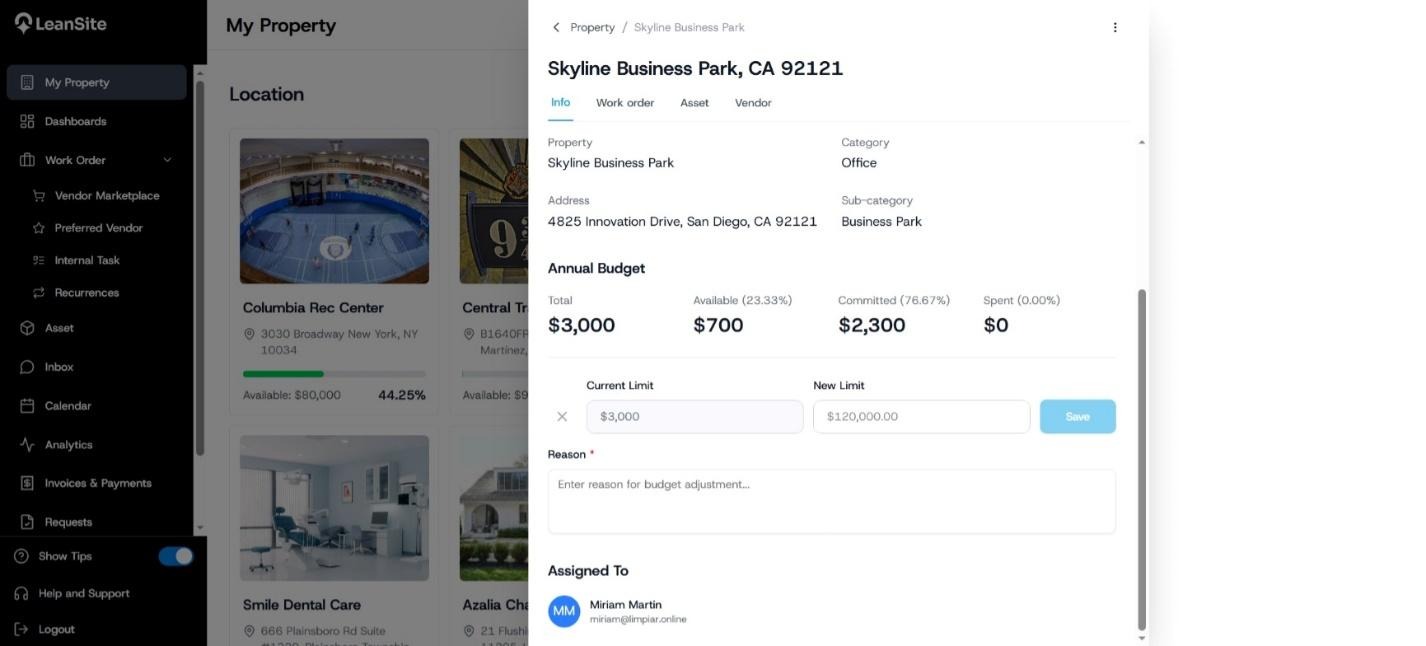
Alt text: Adjust Budget fields showing Current Limit, New Limit, the required Reason field and Save.
5. Save the adjustmentCheck the figures and select Save. Return to the Annual Budget summary and confirm that the Total and related values reflect the approved change.
Expected resultThe property’s annual budget shows the revised total limit. The reason supplied with the change provides context for the financial record and subsequent review.
If you cannot save the changeCheck that New Limit contains the revised total and that Reason has been completed. If the action is unavailable, ask the organisation’s authorised budget owner to make or approve the change. If the summary does not update after a successful save, record the property name, the previous and revised limits, and contact LeanSite Support.