.png?width=1322&height=525&name=LEANSITE%20LOGO%20(COLORED).png)
This guide starts when a requester has submitted a form and ends when the request has been dispositioned. It does not cover building a form template or deploying its QR code.
Before you startYou need access to the property’s service requests. For a request that will become work, be ready to choose the trade, assignment route, priority, NTE where applicable and any checklist needed for completion.
1. Open the intake queueOpen Service Requests, select Findings, then open Guest Findings for requests submitted through a public form. Use Filter or Search to narrow the queue. Cards show the request state, urgency, description, location and any available photo count.
The current interface uses the word Finding for these intake records. A Converted record has already been turned into work; open an unresolved record for review.
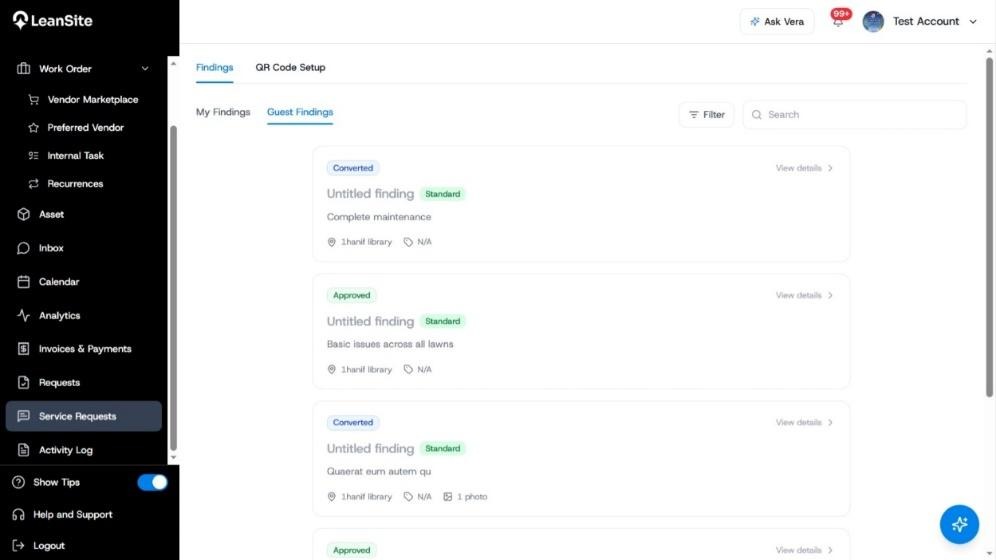
Alt text: Guest Findings queue showing service-request cards, Standard urgency, Converted and Approved states, search and filter controls.
Select View details. Confirm the property or location, specific area or linked asset, description, issue category, urgency and supporting photos. If the requester provided contact information, use it only for operational follow-up connected to this issue.
LeanSite supports Standard and Urgent requester priorities in this flow. Treat the label as an intake signal and apply your organisation’s response procedure when deciding what happens next.
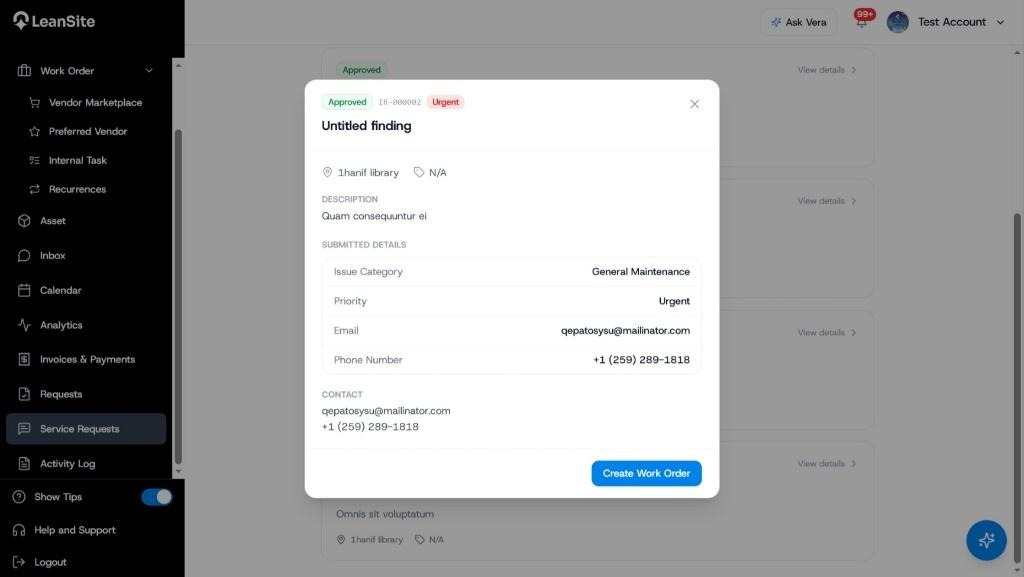
Alt text: Approved urgent finding showing its reference, property, description, issue category and requester contact details.
3. Choose the correct dispositionUse the action that matches the request:
|
Use it when |
Result |
|
|---|---|---|
|
Create Work Order |
The issue requires new work. |
Request context is carried into a new work-order draft. |
|
Request More Information |
A safe assignment decision needs clarification. |
LeanSite contacts the requester when usable contact information was supplied. |
|
Merge with Existing |
The issue duplicates a request or active work order already being handled. |
The duplicate is linked to the existing record, avoiding double work. |
|
Dismiss |
The request does not warrant work. |
The request is closed with a recorded reason. |
Each decision records the timestamp, FM identity and rationale. LeanSite v1 does not automatically route an intake request to a team or vendor.
4. Create work when action is requiredSelect Create Work Order. Review the carried-over description, property and asset. Complete the title, specific area, trade or service category and supporting documents, then continue through WO Type, Fulfillment Details and Preview. Add the assignment route, NTE for supported external work and any checklist required by the job.
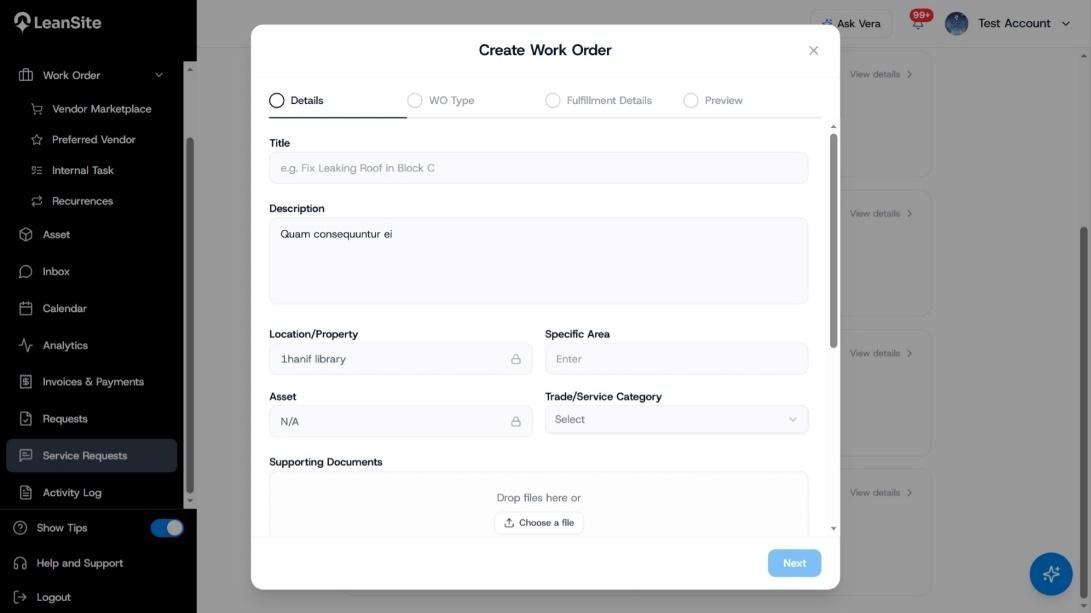
Alt text: Create Work Order dialog opened from a finding, with the property and asset carried over and the work-order stages visible.
5. Confirm the recorded outcomeReturn to the request and verify its new state and linked record. If contact details were supplied, the requester receives an update after disposition. Open the new work order and confirm that its property, asset, description and evidence match the original request.
Expected resultThe request has one recorded outcome: new work, a clarification request, a link to existing work or dismissal. Any new work order retains the request context and can be followed through assignment and completion.
If the wrong decision was madeDo not create a second work order to hide the mistake. Open the request, its linked work order and the Activity Log to establish what was recorded. Correct the affected operating record if your permissions allow it, or contact an authorised manager or LeanSite Support with the request reference and intended outcome.
Related articles- Create and Manage Service-Request Templates
- Create and Deploy QR Codes for Service Requests
- Create One Marketplace Work Order
- Create One Internal Task
- Use the Activity Log