.png?width=1322&height=525&name=LEANSITE%20LOGO%20(COLORED).png)
This guide follows both parts of the process: submitting an NTE increase from a work order and reviewing it in the FM Portal. An NTE approval changes the authorised ceiling for that work order. Property-budget adjustments and transfers use separate controls.
Before you startThe requester needs the work order, revised amount and reason for the additional cost. The reviewer needs access to Requests, authority to make the decision and enough property-budget capacity for the approved work.
Request an NTE increase1. Open the work order
Open the external work order that requires more authorised spend. Review its current scope and NTE before starting a request.
2. Start the NTE request
Use the work order’s NTE request action. Enter the revised amount and explain the scope, labour, materials or other approved change that requires additional authorisation. Add supporting evidence made available by the workflow, then submit the request.
3. Wait for a decision
The request enters the approval queue. Treat the additional amount as pending until the decision is recorded on the request and work order.
Review an NTE increase4. Open the approval queue
In the FM Portal, select Requests, then open Approval Request (NTE). The list includes the work-order reference, request title, requester, team-member count, status and requested amount.
5. Review the pending request
Find the card marked Pending Approval. Compare the requested amount with the work-order scope and the property’s available budget. Open the linked work order when more context is needed.
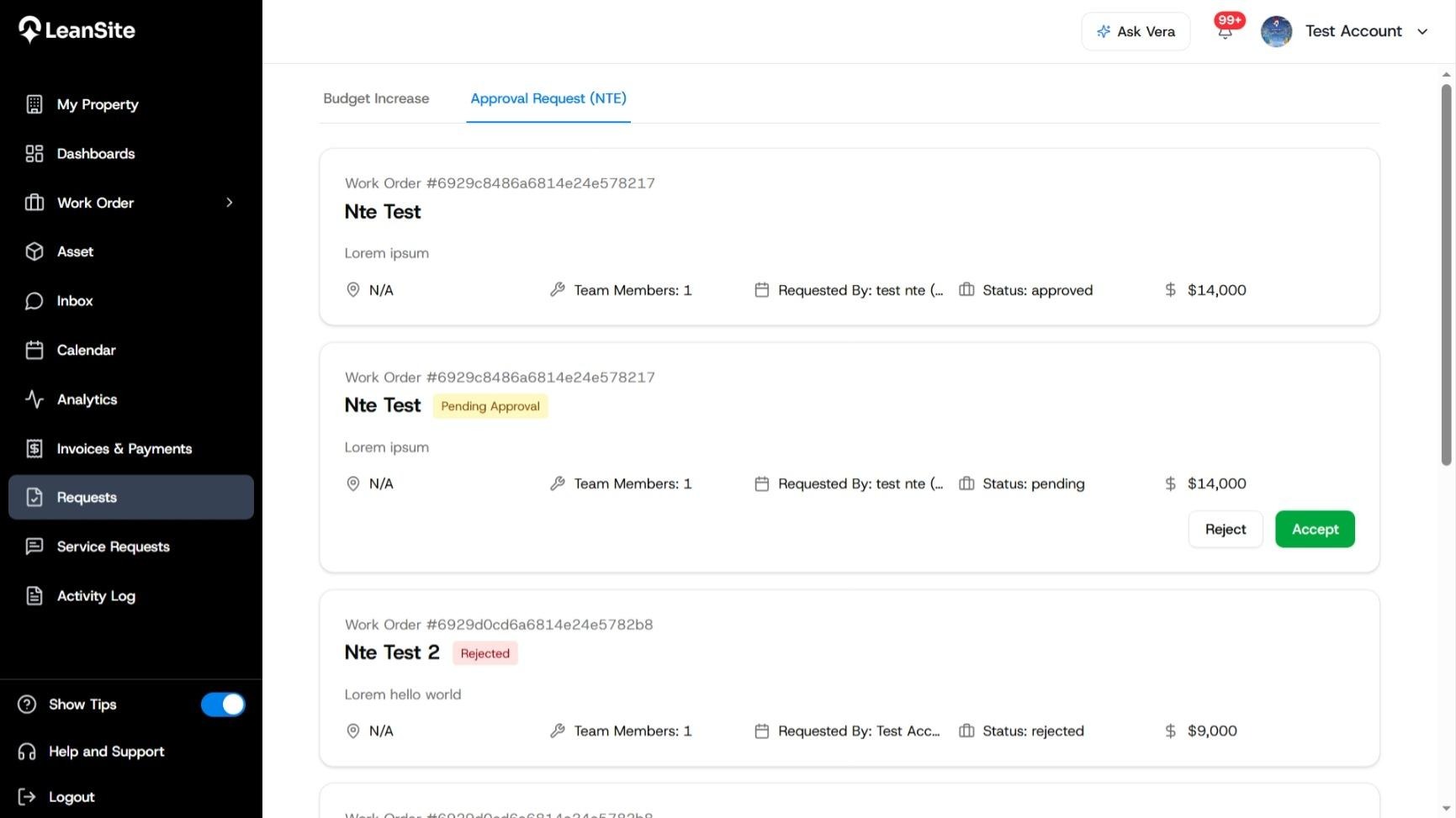
Alt text: Approval Request (NTE) list showing approved, pending and rejected requests, with Accept and Reject actions on the pending request.
6. Record the decision
Select Accept to approve the request or Reject to decline it. Use the organisation’s approval process when a reason or further evidence is required before the decision.
7. Confirm the result
After selecting Accept, LeanSite displays Request accepted successfully. Return to the request or linked work order and confirm its updated status before the requester continues with the additional scope.
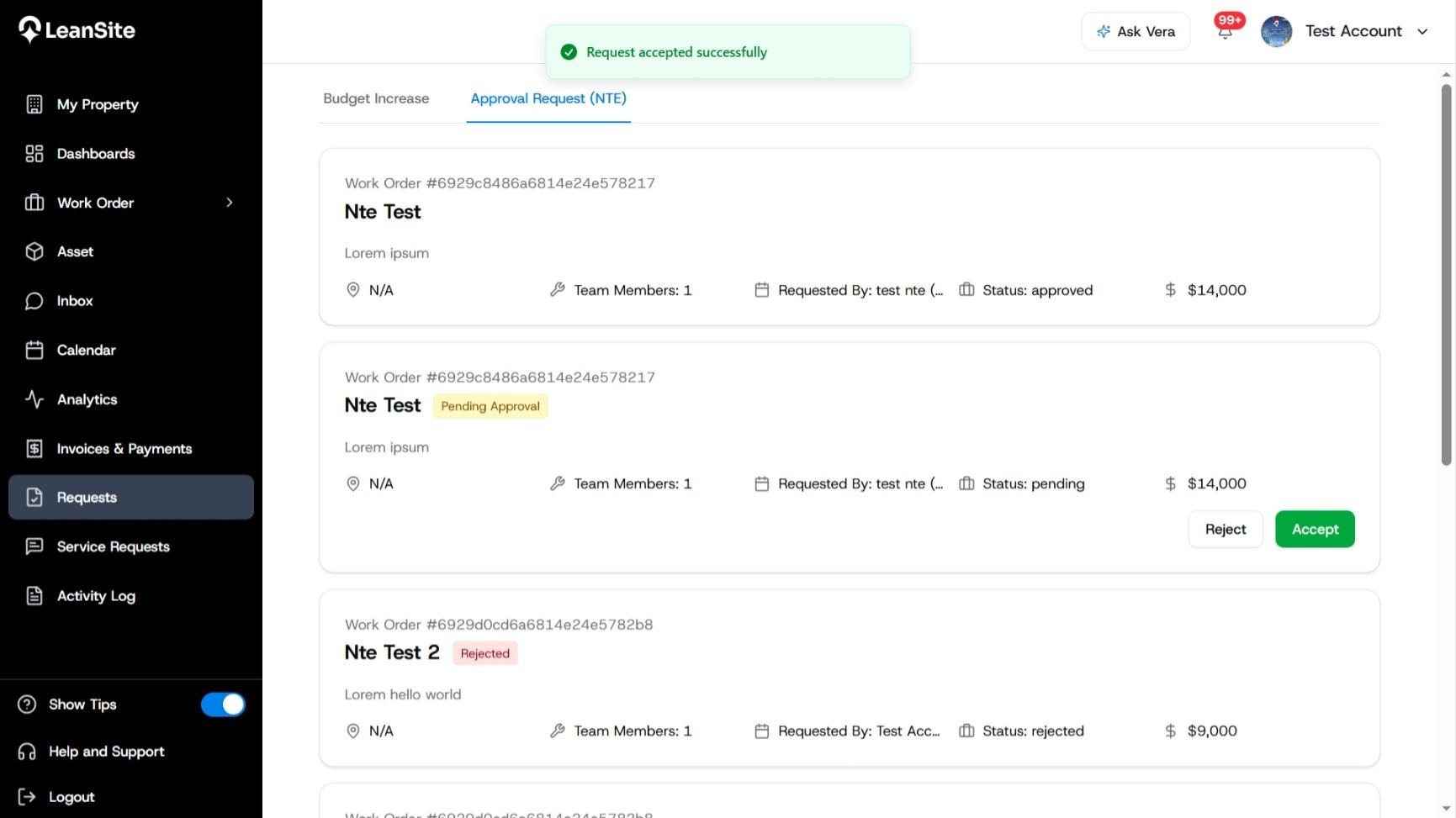
Alt text: Confirmation message stating that the NTE request was accepted successfully.
Expected resultThe request is recorded as approved or rejected and remains linked to its work-order context. An accepted request gives the work order a recorded decision for the higher authorised amount.
If the request cannot be decidedCheck the linked work order, request amount, property and requester. Leave the request pending while required evidence or authority is obtained. If the work is urgent, follow your organisation’s safety and commercial escalation process; the pending request alone does not document an emergency approval. Contact LeanSite Support if the decision is recorded but the request or work order does not update.