.png?width=1322&height=525&name=LEANSITE%20LOGO%20(COLORED).png)
This guide follows work from the Service Provider business or supervisor response into field execution. The SP Portal is used for business oversight; the LeanSite Agent app is used by assigned field agents to start, document and complete tasks.
Before you startYour Service Provider business must have an active LeanSite account, the correct service and location coverage, and a user authorised to respond to work. Enable email and in-app notifications. Field agents need an account created by their Service Provider supervisor and the LeanSite Agent app.
1. Open the new-work notificationSelect the notification bell in the SP Portal. Open the notification for the opportunity, quote request, direct assignment or change. LeanSite’s notification feed shows the latest role-relevant events and links each supported event to its record.
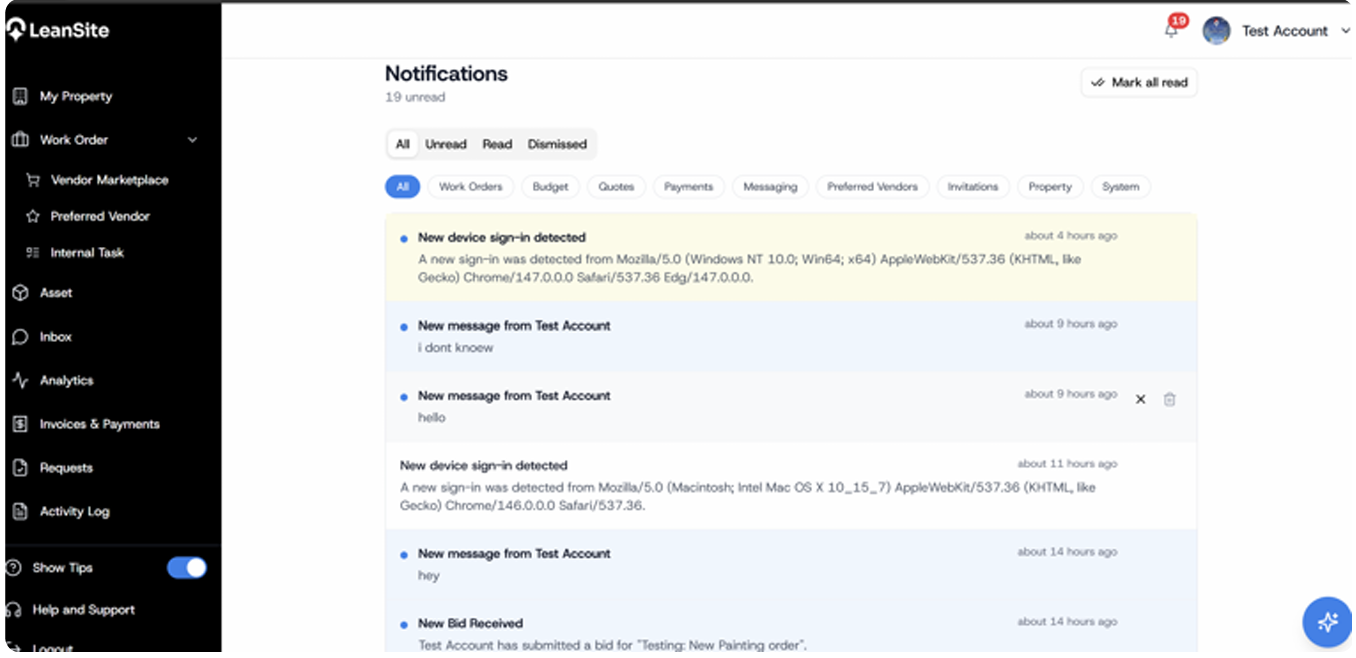
Alt text: LeanSite web notification feed with event filters, timestamps and links to related records.
Read the record before responding:
|
Route |
What to confirm |
Response |
|---|---|---|
|
Marketplace |
Bidding deadline, property, asset, service category, scope, documents, estimated time and commercial limit shown. |
Submit the supported bid or quote before the deadline, or decline when you cannot meet the requirement. |
|
Direct / Preferred Vendor |
Property, service, schedule, scope, response deadline and the terms shown on the assignment. |
Use the current SP Portal response action, then assign the work when accepted. |
Marketplace quote notifications cover requested, submitted, approved, rejected and revised events. Open the linked record after each event because the notification is a prompt, not the complete commercial record.
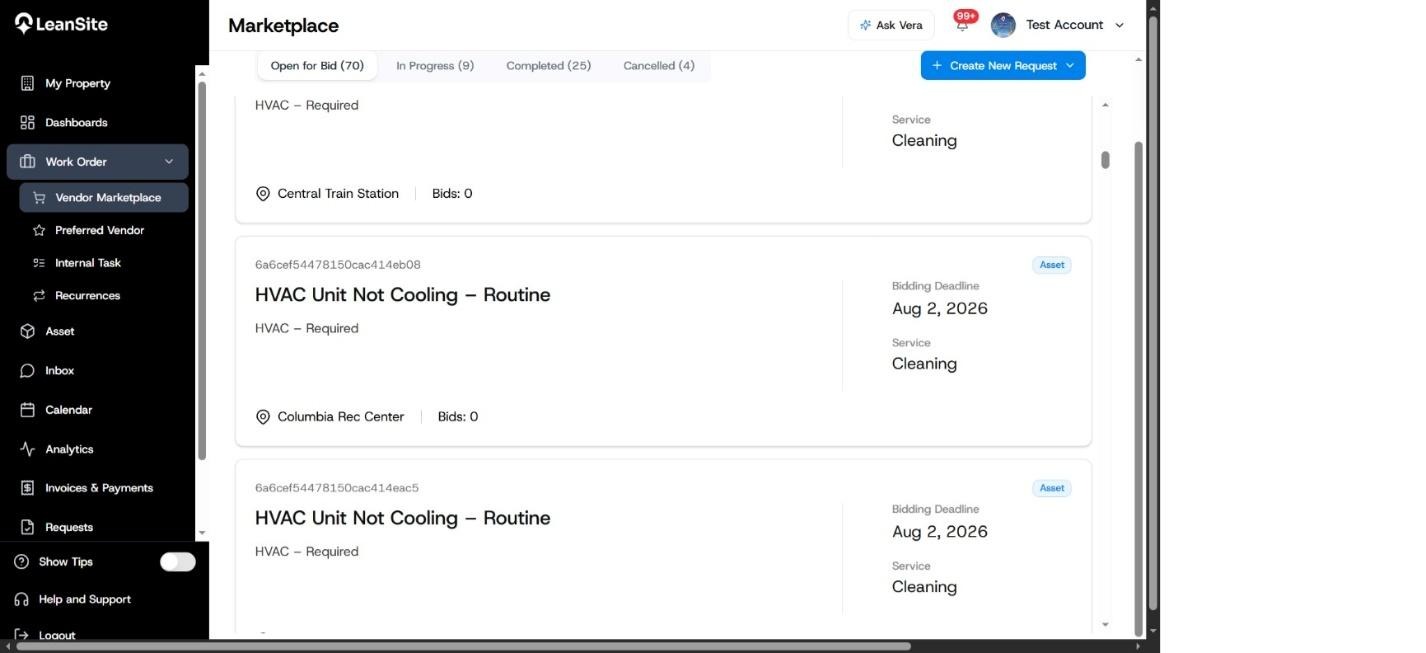
IMAGE: Work Order Vendor Marketplace view.
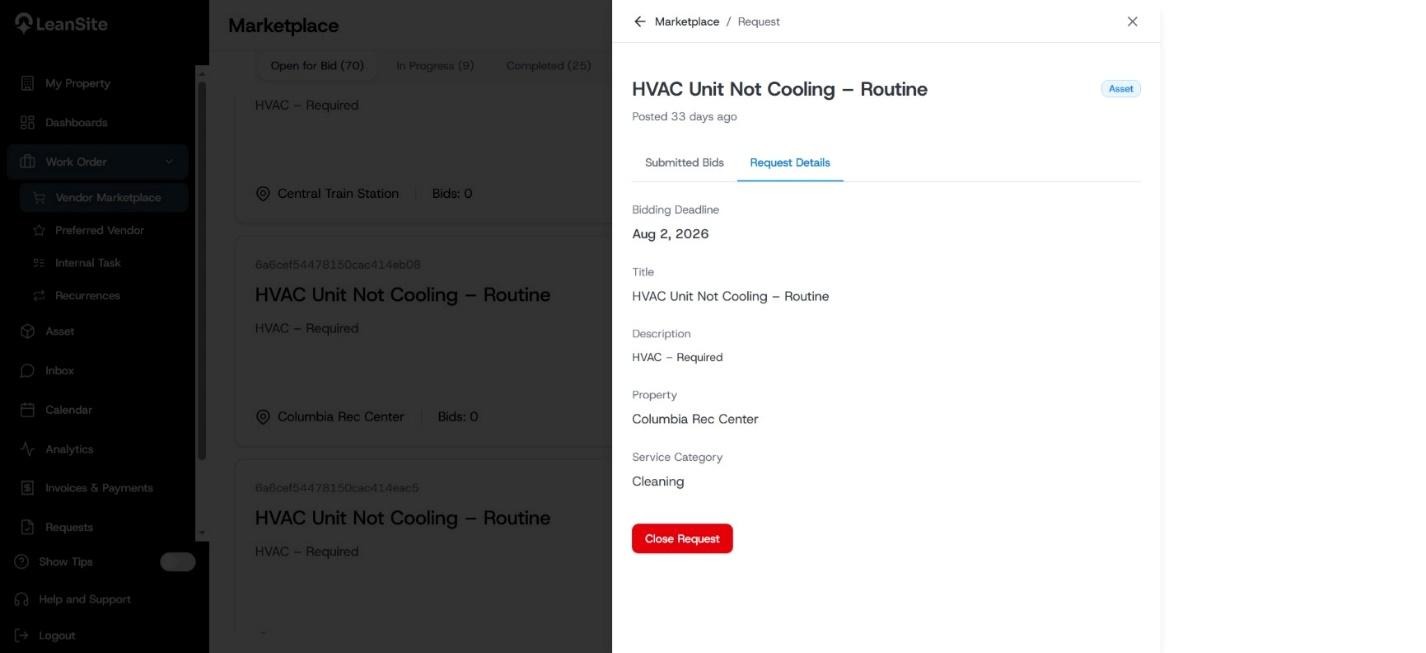
Individual marketplace request details view
Alt text: FM-side marketplace list and request detail showing bidding deadline, property, asset, service category and submitted-bid context.
3. Submit a complete response
Enter the price, expected time, notes and supporting material requested by the live response form. Check the authorised scope and asset information before pricing. Submit once, then confirm that the record shows a submitted state. If LeanSite requests a revision, open the quote record, read the FM’s revision note and update only the requested parts.
Do not claim work has been won until the record shows approval or assignment. Keep commercial decisions inside the linked record so the history remains traceable.
4. Assign the awarded work
After award or direct acceptance, the Service Provider supervisor assigns the job to the appropriate agent. The SP Portal is filtered to the business’s own team tasks. The assigned agent receives a push containing the task title, property and priority and can open the task directly.
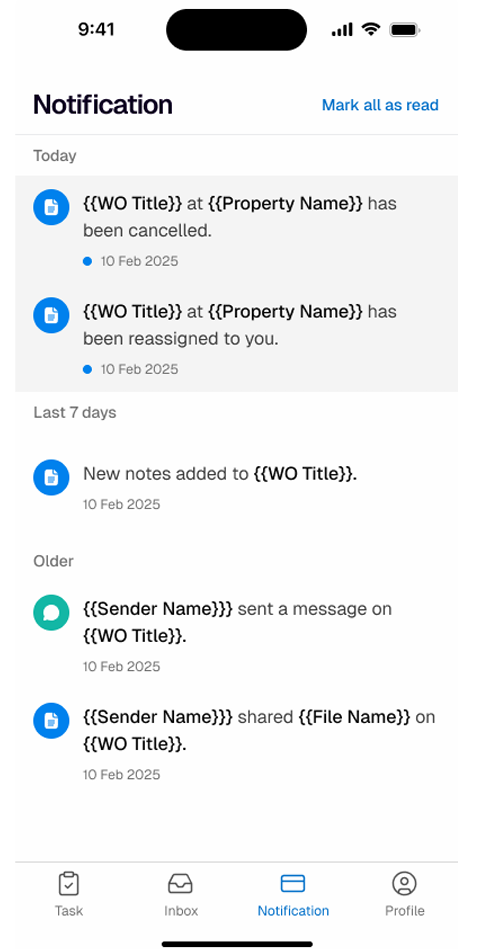
Alt text: LeanSite Agent notification feed showing cancelled, reassigned, note and message events for work orders.
In the LeanSite Agent app, open Tasks, select the assigned work order and review its tasks. Select Start Task when work begins. LeanSite records the start time and updates the FM Portal and SP Portal in near real time.
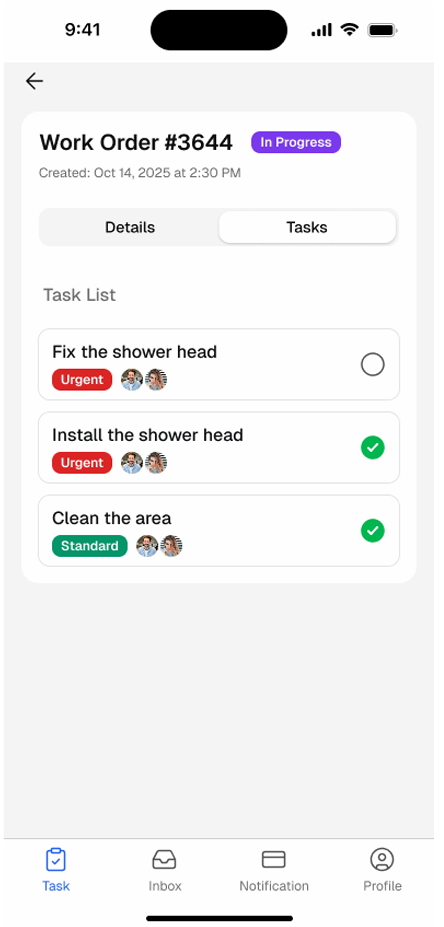
Alt text: LeanSite Agent task list and work-order detail showing To Do, In Progress and Complete tasks.
6. Keep communication on the work order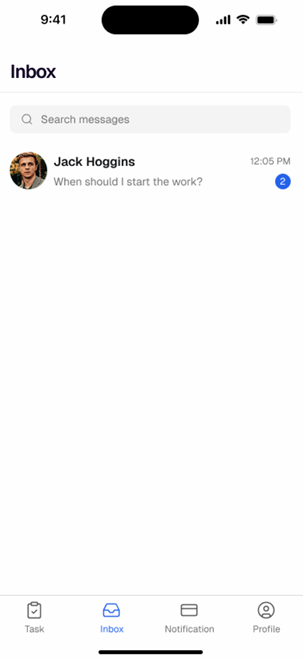
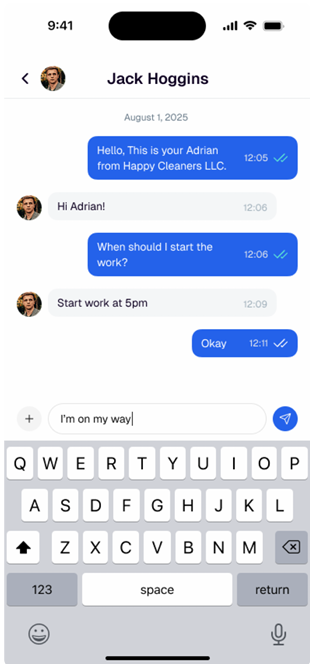 Use the work-order message thread for questions, instructions and clarifications. Messages can sync across the FM Portal, SP Portal and Agent app, and the Agent app groups conversations in Inbox.
Alt text: LeanSite Agent Inbox and a work-related message thread between a field agent and facility contact.
Alt text: Submit Task sheet in LeanSite Agent with completion-image upload for an in-progress work order.
7. Complete the work with evidence
When the task is finished, select Complete Task, add factual completion notes and attach supported photos. Submit the task once. LeanSite records the completion time and sends the status, notes and photos to the SP Portal and FM Portal.
Alt text: Submit Task sheet in LeanSite Agent with completion-image upload for an in-progress work order.
Expected resultThe vendor response is recorded, awarded work reaches the assigned field agent, and start time, completion time, notes and photo evidence flow back to both business and facilities users.
If you cannot respond or assign the workCheck the deadline, service coverage, account role and current opportunity status. Open the notification’s linked record to see whether the work was revised, cancelled or awarded elsewhere. Contact your Service Provider administrator or LeanSite Support with the Work Order ID when the correct action is missing.