.png?width=1322&height=525&name=LEANSITE%20LOGO%20(COLORED).png)
This guide covers the FM Portal team record and its operating scope. It does not invite an external vendor or teach the Team Member’s task-completion flow.
Before you startYou need permission to manage teams. Confirm the team’s name, trade, Team Lead and property coverage. The person selected as Team Lead should already have the appropriate organisation access or be ready to complete an invitation.
1. Open Team settingsOpen Settings and select Team. The list shows each team’s name, trade, Team Lead, staff and status. Use this page to check that a similar team does not already exist.
2. Add the teamSelect Add Team. In Add New Team, enter a Team Name that staff and dispatchers will recognise.
3. Select the tradeChoose the team’s Trade. Keep the name and trade aligned so the team is easy to select during internal work-order creation.
4. Assign the Team LeadEnter or select the Team Lead. The lead is the internal recipient who receives work for the team and coordinates assignment to Team Members.
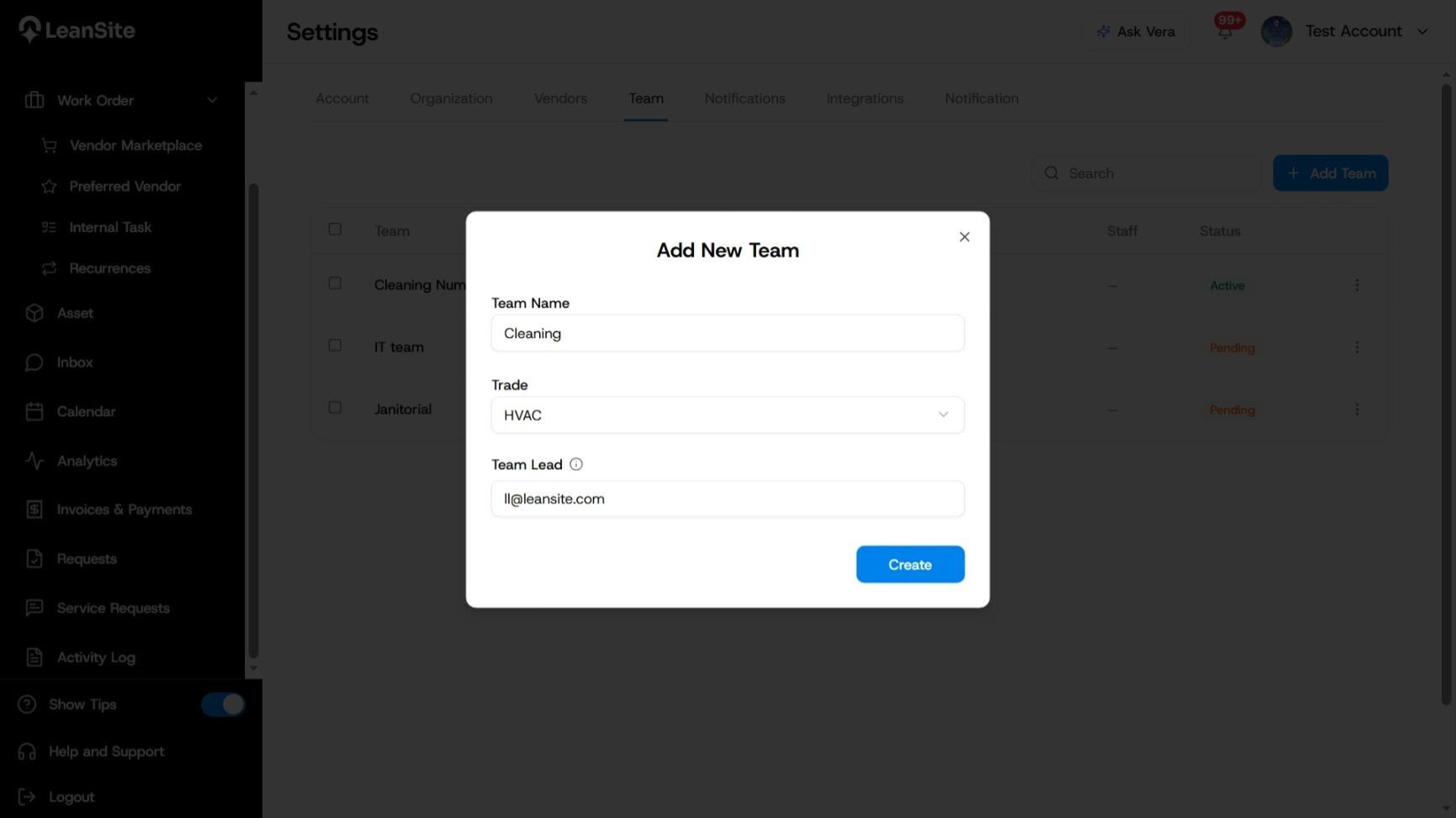
Alt text: Add New Team window showing Team Name, Trade and Team Lead fields.
5. Create the teamReview the fields and select Create. LeanSite confirms Team created successfully and adds the team to the list.
A team can show Pending while its lead or setup is incomplete. An established team can show Active. Review any Unassigned Team Lead shown in the list before routing work to that team.
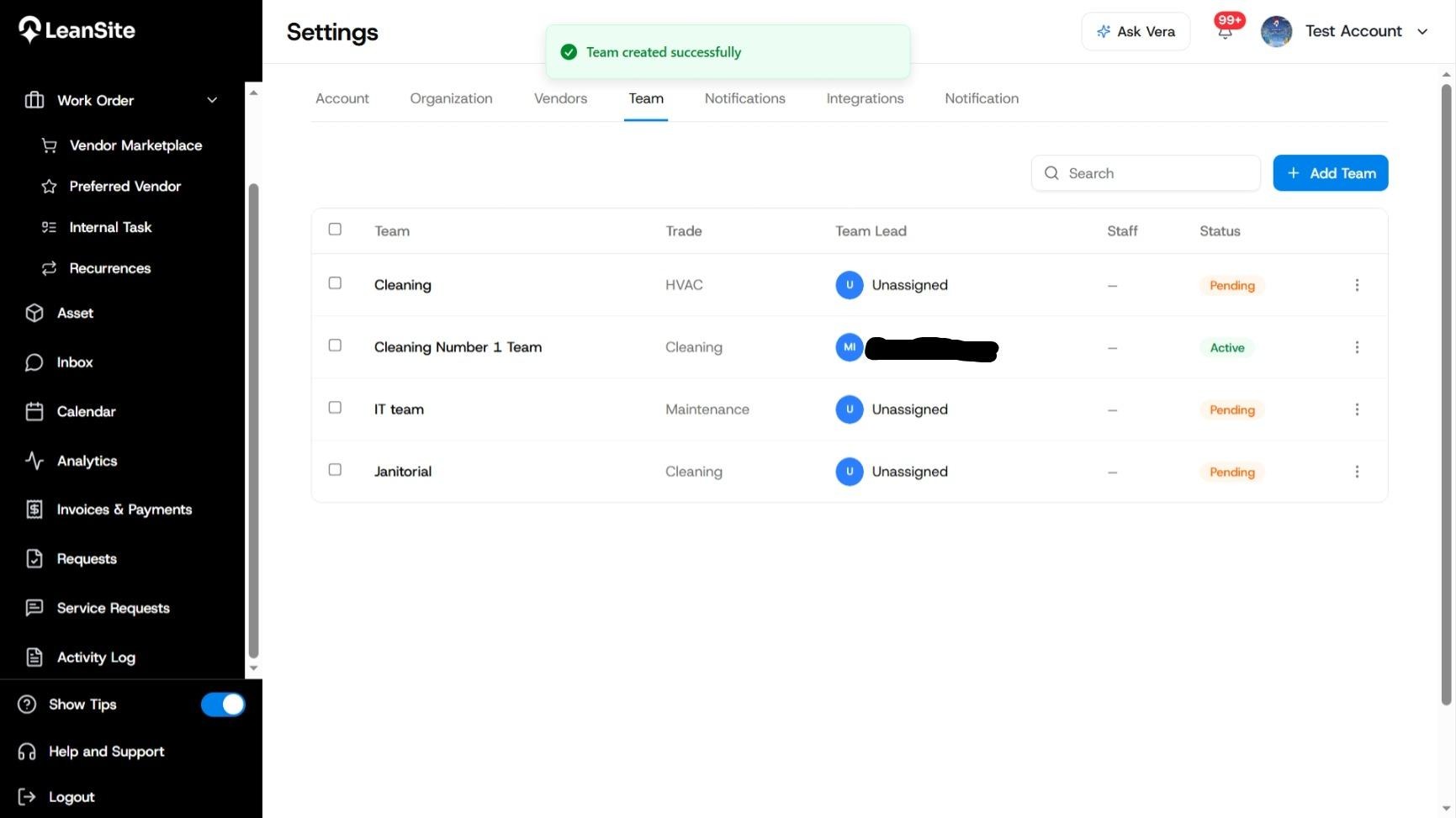
Alt text: Team settings list showing the new team and Team created successfully confirmation.
6. Confirm the team’s operating scopeCheck that the Team Lead has access to the properties the team will support. The internal work-order selector is property-scoped, so only teams available for the work order’s property should be used for assignment.
Expected resultThe team appears in Settings > Team with its name, trade, Team Lead and current status. Once active and available to the relevant property, it can be selected for internal work.
If the team remains pendingCheck whether the Team Lead is unassigned or still has an incomplete organisation invitation. Confirm the person’s role and property access in Settings > Organization. Do not route urgent internal work to a team whose lead or property coverage has not been completed.