.png?width=1322&height=525&name=LEANSITE%20LOGO%20(COLORED).png)
This is the vendor lane for invoice submission and payment tracking. The property-team review and status interpretation are covered in Understand Invoice and Payment Status.
Before you startConfirm that your Service Provider business is approved for payments and that your role can submit invoices. The linked work should show completion, including required notes and photo evidence. Have the Work Order ID, authorised amount or NTE and invoice document ready.
1. Confirm that the work is ready for invoicingOpen the completed work order in the SP Portal. Confirm the property, work completed, completion timestamp, notes and evidence. Resolve any rejected or incomplete task evidence before creating the invoice.
Field completion updates sync from the LeanSite Agent app to both the SP Portal and FM Portal in near real time.
Alt text: LeanSite Agent completion submission with image upload and notes, followed by cross-platform status-sync guidance.
Use the invoice action on the eligible work order or open the related record from Invoices & Payments in the SP Portal. Confirm that the invoice remains linked to the correct Work Order ID and customer.
3. Review the authorised amount
Compare the invoice with the accepted quote, approved scope, NTE and recorded variations. Do not add unsupported charges. When the invoice would exceed the current authorised amount, use the supported commercial or NTE process before submission.
The property-team view shows the vendor, request amount, estimated vendor net and completed work. Use that as a reconciliation reference after the vendor submission screen is captured.
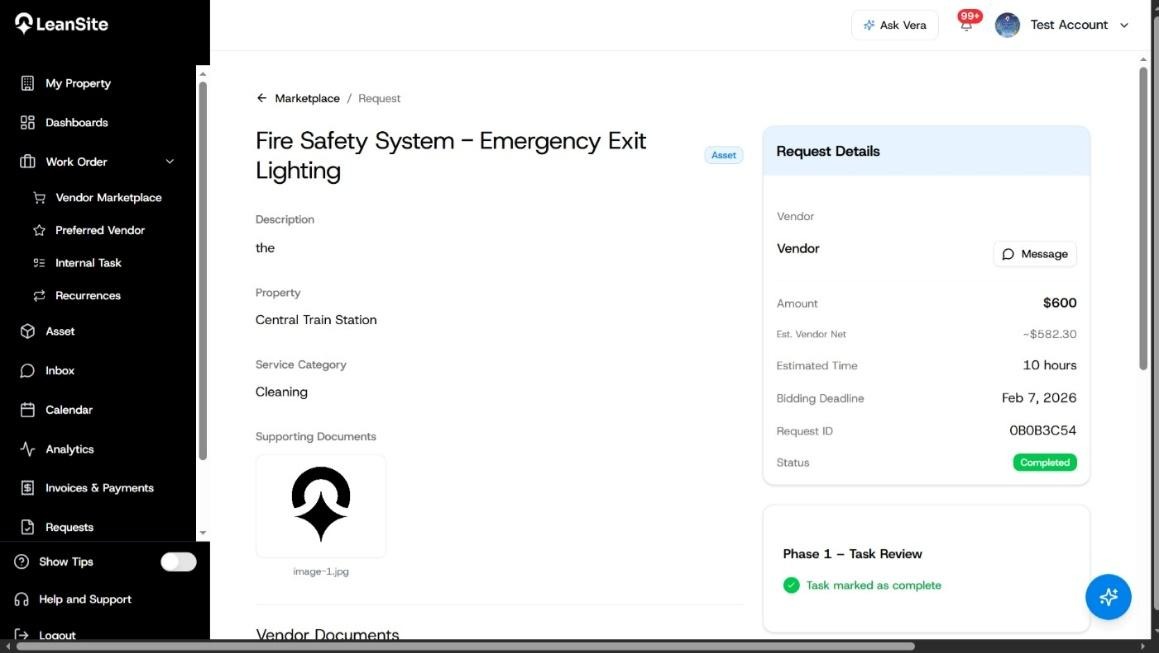
Alt text: FM-side completed marketplace request showing vendor, amount, estimated vendor net, Work Order ID and completed task phase.
Enter the invoice number, date, amount and other fields required by the current SP Portal. Attach the invoice and supported evidence, review the summary, then submit. Confirm that the record shows a submitted or review status before leaving the page.
5. Follow review notificationsOpen the SP Portal bell or your registered email when an invoice or payment notification arrives. The internal Notifications release covers invoice generated, invoice sent, payment received, payment failed, payment overdue, payout initiated, payout completed and dispute raised. Supported notifications deep-link to the invoice or payment record.
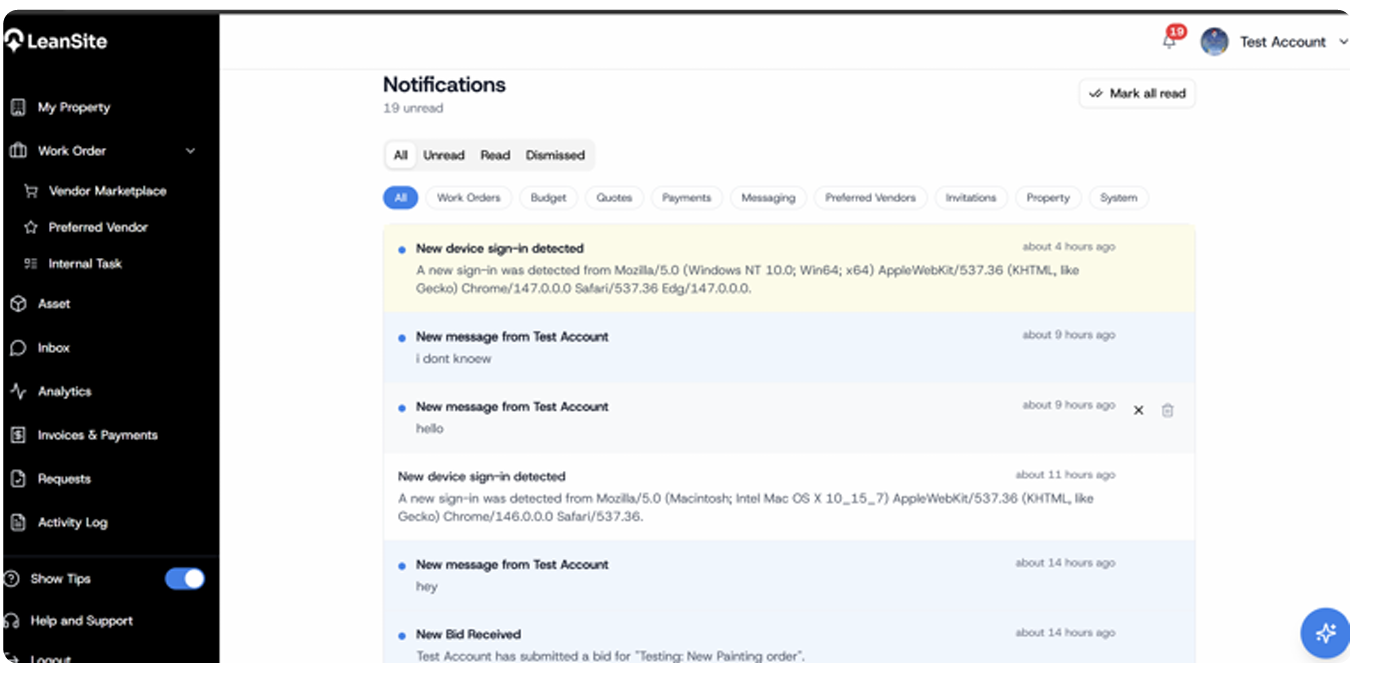
Alt text: LeanSite notification feed with role-filtered events and links to related records.
If a correction is requested, update the invoice through its recorded revision flow. Keep the new document and explanation on the same invoice record so the approval history remains intact.
6. Track payment and payoutUse the invoice or payment record as the source of truth. A processing status means the payment has started and is not yet complete. Treat payout completed or the final paid state as confirmation. The Notifications release specifies that payment-received emails to Service Providers are high-priority transactional emails.
The FM-side completion record shows Phase 2 - Payment Release, Payment Completed, and receipt actions after successful processing.
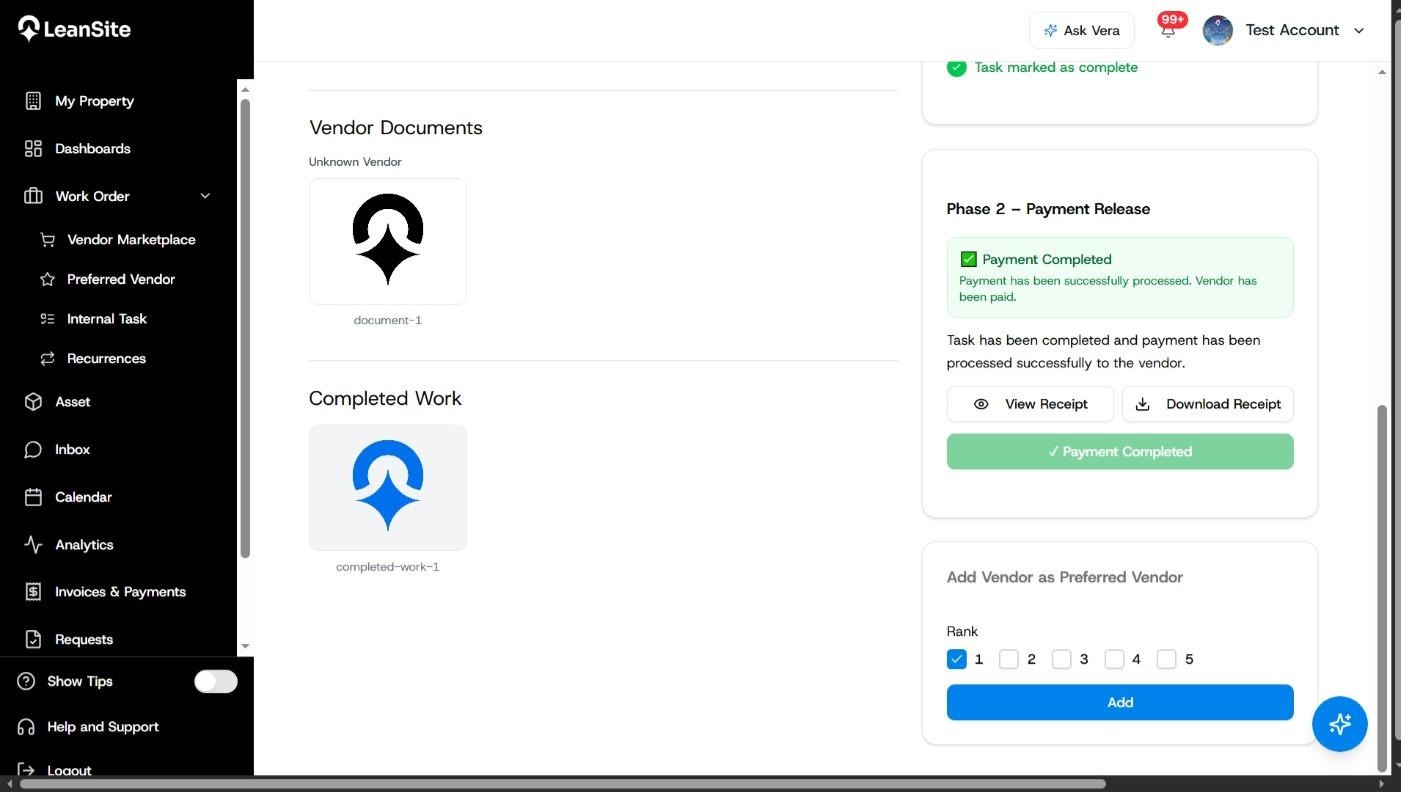
Alt text: FM-side marketplace completion record showing Payment Completed and receipt actions.
Use note: Use as the customer-side confirmation paired with a future SP Portal payout-status capture.
If the property team sees that the vendor is not onboarded for payments, your Service Provider payment setup must be completed before funds can be processed. For a disputed amount, open the linked dispute record, respond with the requested evidence and wait for the recorded resolution before resubmitting or expecting payout.
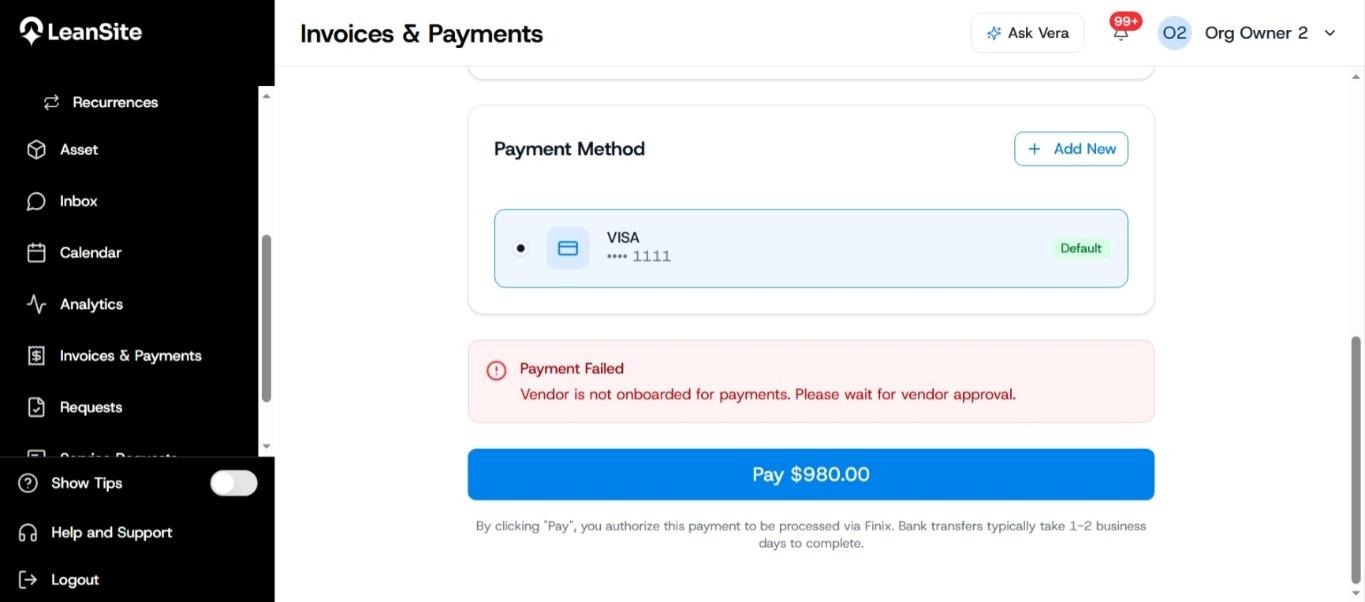
Alt text: FM-side Payment Failed message stating that the vendor is not onboarded for payments.
The invoice remains linked to the completed work, its review history is traceable, and the final payout status is visible from the vendor’s invoice or payment record.
If payment appears stuckOpen the linked record from the latest notification and compare its timestamp with the invoice history. Check vendor payment onboarding, requested corrections, disputes and failed-payment messages. Contact LeanSite Support with the Work Order ID and Invoice ID without sending passwords or bank credentials.