.png?width=1322&height=525&name=LEANSITE%20LOGO%20(COLORED).png)
This guide covers a transfer between two property budgets. It does not change the organisation’s combined allocation. Use Adjust Budget when one property’s total budget limit must be revised without drawing funds from another property.
Before you startYou need permission to manage both property budgets. Confirm the source property, destination property, transfer amount and reason for the movement.
1. Open the source propertyFrom My Property, open the property that will provide the funds. On its Info tab, review the Annual Budget summary. Pay particular attention to Available, because committed and spent amounts already relate to work or expenditure recorded against the property.
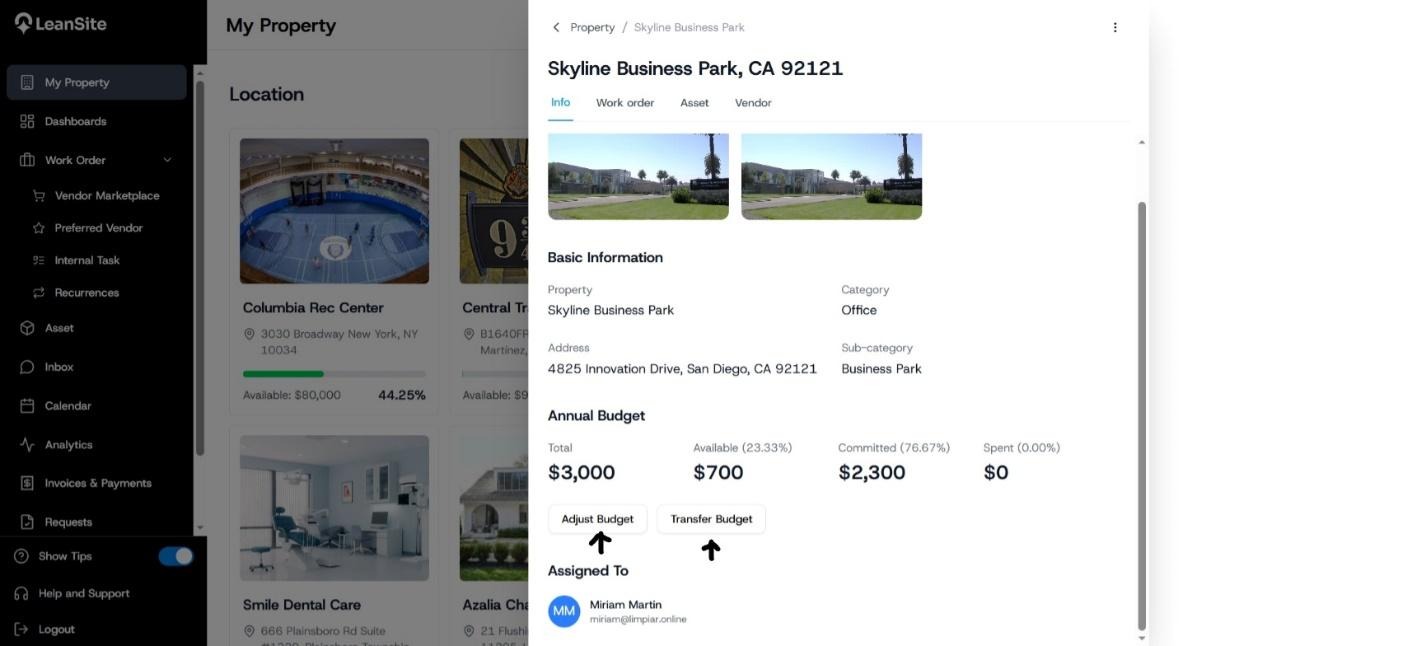
Alt text: Source property annual-budget summary with the Transfer Budget action.
2. Open the transfer formSelect Transfer Budget. The source property remains the property whose record you opened.
3. Choose the destinationUse Transfer To to select the property that should receive the funds. Confirm the property name before entering the amount.
4. Enter the amount and reasonEnter the value in Transfer Amount. Complete the required Reason field with enough detail to explain the purpose of the transfer during a later review.
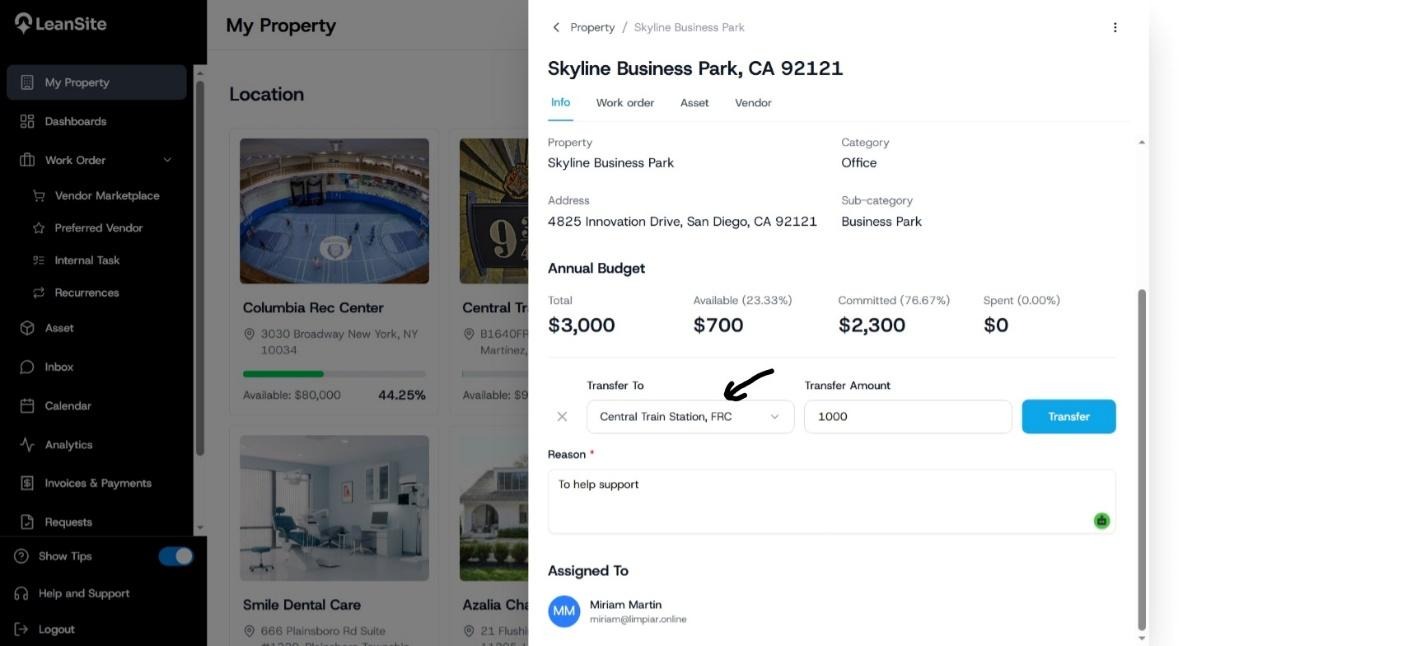
Alt text: Transfer Budget form showing the destination property, transfer amount, required reason and Transfer button.
5. Complete the transferReview the destination, amount and reason, then select Transfer. Wait for the confirmation before leaving the property record.

Screenshot cue
ZIP: LeanSite (5).zip
File: Budget successfully transferred from one property to the other.jpeg
Placement: Immediately after this step.
Alt text: LeanSite confirmation stating that the budget was transferred successfully.
Review the annual-budget summary for the source property and then the destination property. Confirm that the transfer is reflected in the appropriate balances before authorising new work against either property.
Expected resultLeanSite displays Budget transferred successfully, and the source and destination property records reflect the completed movement.
If the transfer fails or is incorrectRecheck the destination, amount and source property’s available budget. Do not repeat the transfer after a success message, because that could create a second movement. If a completed transfer used the wrong property or amount, preserve the reason and transaction details, then contact the authorised budget owner or LeanSite Support for the approved correction route.